Set aside for next month
Set aside income for next month on a transaction, as an income category's default, or from Ready to Budget, and budget a month ahead in Zerosum.
Written By Pedro
Last updated About 2 hours ago
Set aside income now so you budget it next month instead of this month. You can do it on a transaction, make it an income category's default, or set aside money that is already in Ready to Budget.
💡 It reserves money, it doesn't create more. Setting income aside holds it back from this month's Ready to Budget and adds it to next month's. Unbudgeted money already carries into next month on its own; what you gain is timing, being a month ahead, not extra cash.
Why budget a month ahead
Budget with last month's income. Everything you earn this month funds next month, so each month's spending is covered by money you already have.
No paycheck timing pressure. Stop waiting for deposits to land before you can budget.
Keep the real dates and categories. A paycheck stays in Salary on the day it arrived; only the month it counts in moves.
💡 Tip: You can also budget ahead without this feature: go to a future month and budget there. On desktop, Options then Compare months shows two months side by side.
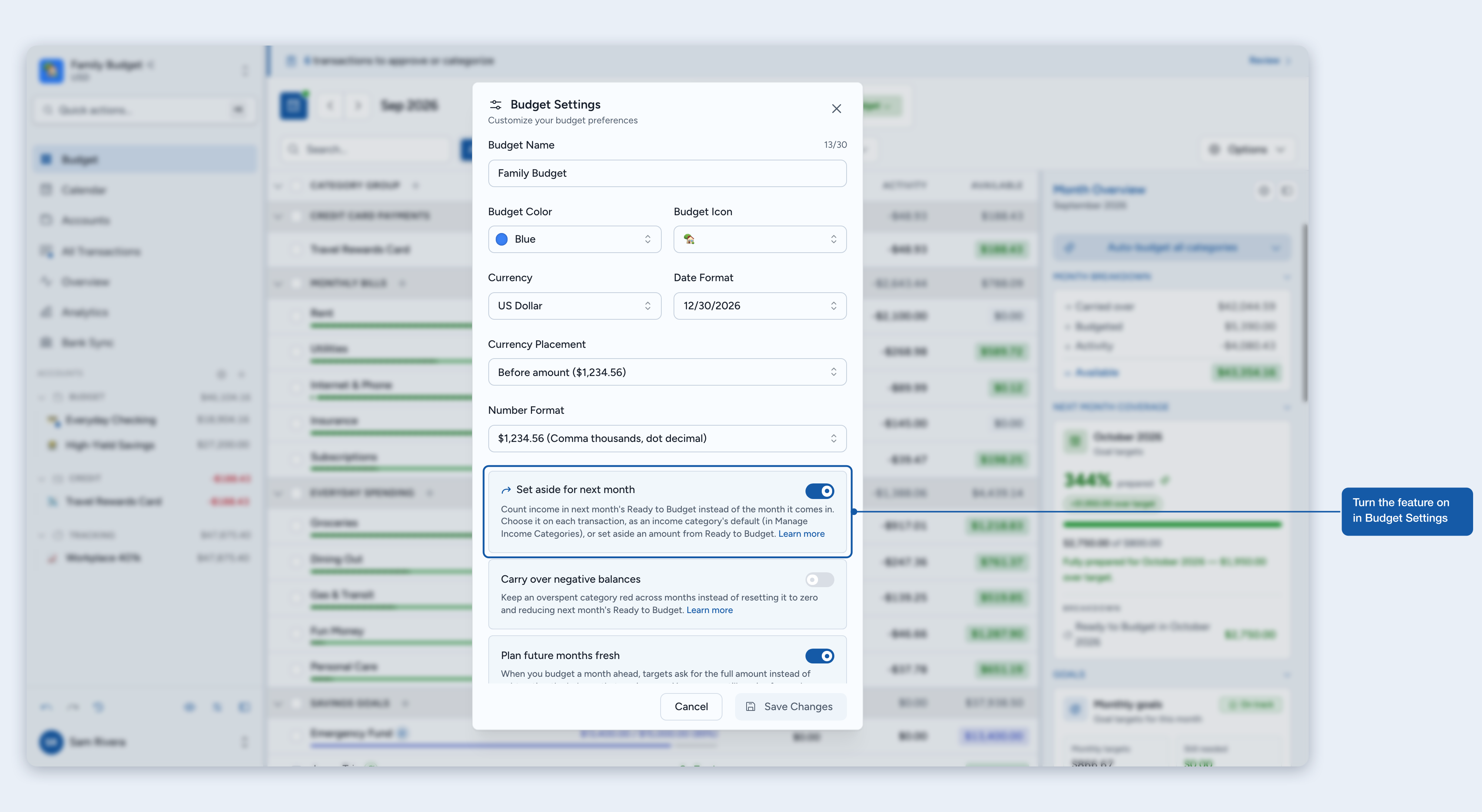
How to turn it on
Click your budget name in the sidebar to open the budget menu.
Select Budget Settings.
Turn on Set aside for next month and select Save Changes.
Set aside a transaction
Add an income transaction, or open one to edit it.
Turn on Set aside for {next month}. The switch shows for money coming in to an income category (Ready to Budget included) on a budget or credit card account.
Save.
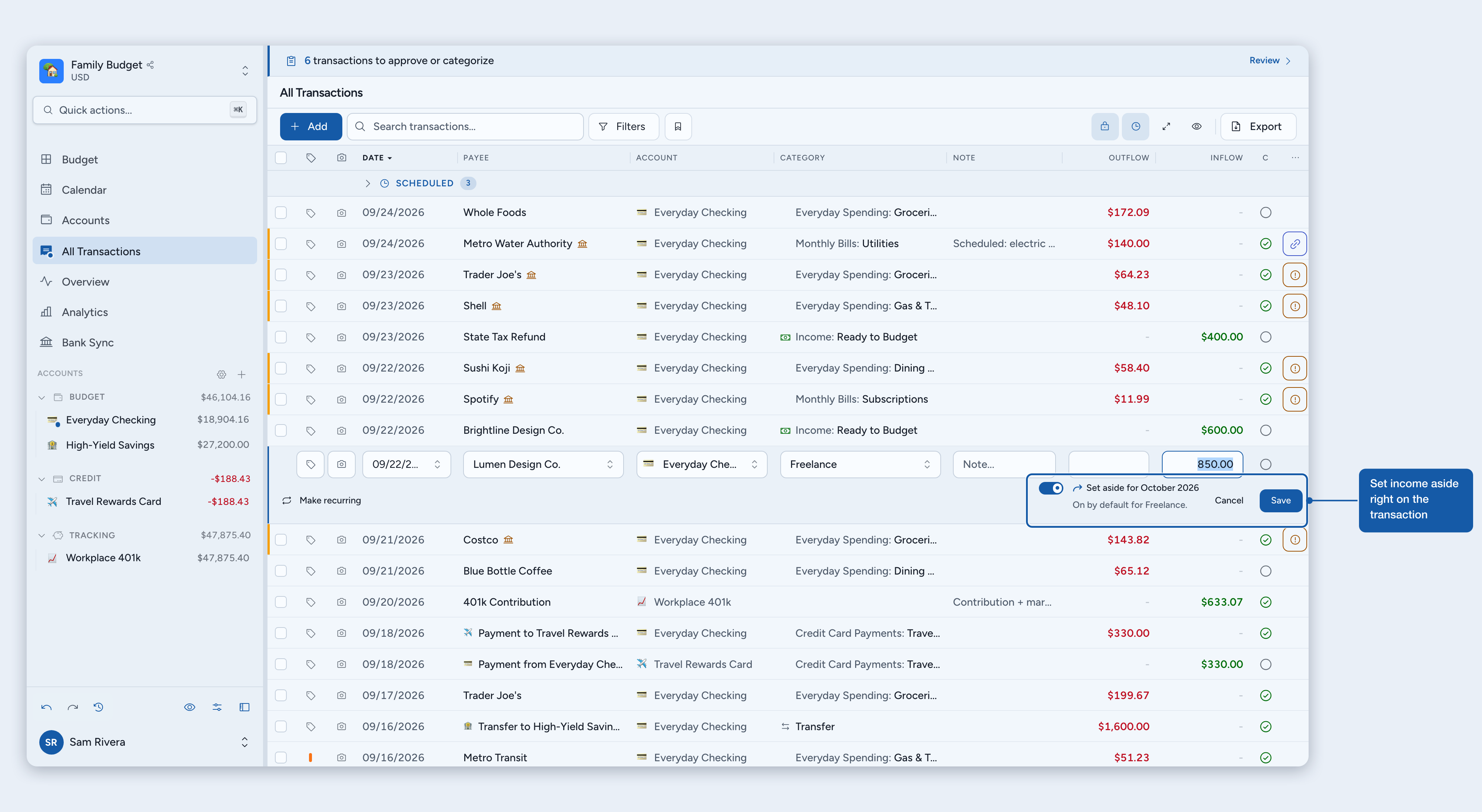
The note under the switch tells you what applies:
On by default for {category}. The category sets its income aside by default (see below). You can still turn it off for this transaction.
Only the part above what the card owes is set aside. On a credit card, income pays the card down first; only the part that takes the balance above zero moves to next month.
Also applies to later occurrences. On a scheduled occurrence of a recurring transaction, the choice becomes the schedule's, so every later occurrence follows it.
Good to know
Money going out is never set aside. If you change a set-aside transaction into an outflow, the switch turns off.
Changing the category resets it. A new category brings that category's default; changing only the amount keeps your choice.
Split transactions. Split lines don't have their own switch: each line in a category that sets income aside by default is set aside, and the editor marks those lines.
Transfers. Money arriving from a tracking or loan account and categorized as income can be set aside like a paycheck. Money coming from a credit card never is.
Bank sync and imports. Imported income in a category that sets income aside by default is set aside automatically.
Set an income category's income aside by default
If one source of income always belongs to next month (a salary, for example), make it the category's default:
Open the budget menu and select Manage Income Categories.
Turn on Set aside by default for the category. Ready to Budget has the same switch.
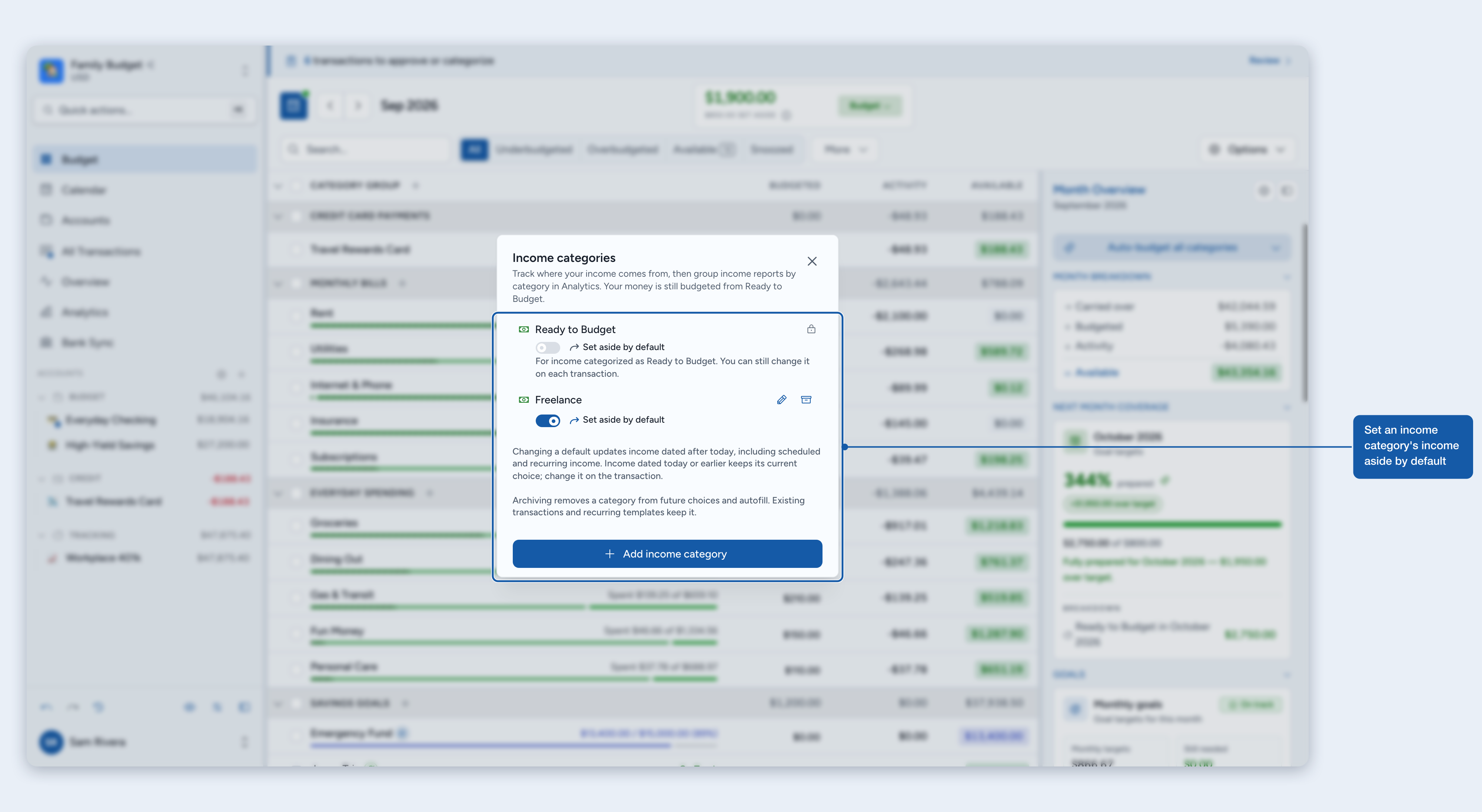
Changing a default updates income dated after today, including scheduled and recurring income. Income dated today or earlier keeps its current choice; change it on the transaction. Archiving a category keeps its default and its transactions as they are.
Set aside money from Ready to Budget
If money has already reached Ready to Budget, you can set some of it aside without touching any transaction.
Open the current month and select the Ready to Budget card.
Choose Set aside for {next month}. It reads Set aside more for {next month} when income is already set aside, and Edit set-aside for {next month} once you have set an amount aside.
Enter the amount From Ready to Budget. The line under it says how much you can set aside.
Select Save changes.
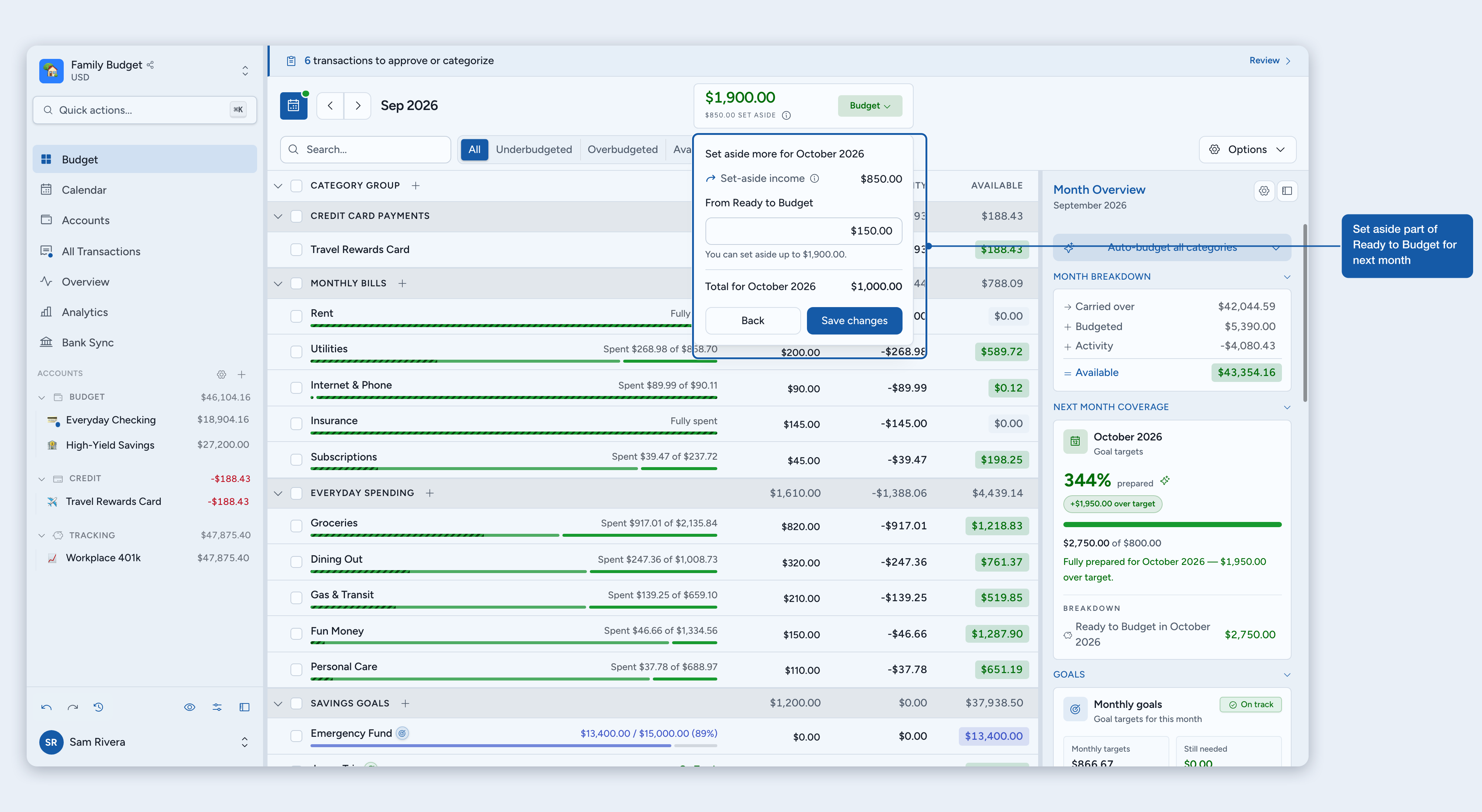
The editor adds it up for you: Set-aside income (from this month's transactions), the amount From Ready to Budget, and the Total for {next month}. To change the set-aside income itself, edit those transactions.
ℹ️ Note: The amount is a total, not an extra transfer. If $1,000 is set aside and you change it to $1,500, $500 more is set aside. Lower it, or clear it, to release money back to this month.
Edit or release it
Change a month's set-aside from that month's Ready to Budget card.
After the month has ended, you can lower or clear its set-aside, but not raise it: that money is already part of the current month's Ready to Budget.
If Ready to Budget is $0 because you set everything aside, select the card anyway: it opens straight to your set-aside.
If the month is over-budgeted
When Ready to Budget is negative and this month has money set aside, the quickest fix is to take some back. Select Cover on the Ready to Budget card:
Take {amount} back from {next month} releases exactly the shortfall in one tap, or the whole amount if it is smaller.
Edit set-aside for {next month} lets you choose a different amount. While the month is over-budgeted, you can only lower it.
You can still cover the shortfall from a category instead.
What happens next month
Everything set aside, from transactions and from Ready to Budget, arrives in next month's Ready to Budget and can be budgeted normally. Anything you leave unbudgeted keeps carrying forward.
Example
Your paycheck of $3,000 arrives on August 31 in Salary, which sets income aside by default. August's Ready to Budget doesn't change, September's goes up by $3,000, and the transaction stays in Salary, dated August 31.
Where to see it
Transactions. A set-aside transaction shows an arrow icon beside its category; on desktop, hover it to see the month the money moves to. A split with some lines set aside reads "Partly set aside".
Ready to Budget card. Shows "$X set aside" when this month sets money aside.
Budget Calculation. Select the info icon beside Ready to Budget for the full breakdown: "Set aside for {next month}" in the total, and in the month's changes "Set-aside income from {last month}", "Set aside from Ready to Budget in {last month}", and the same for next month.
Export. The transactions CSV export has a "Set Aside For" column naming the month each set-aside transaction counts in.
Turning it off
You can turn Set aside for next month off any time in Budget Settings. While it's off, nothing is set aside: income counts in the month it arrives, and next month's Ready to Budget drops by what was set aside. Your choices are kept: turn it back on and everything is set aside again, exactly as before.
ℹ️ Used the For Next Month category before? Transactions already in it stay set aside while the setting is on. For new income, use the switch or a category default instead.