Scheduled & recurring transactions
Plan future bills, income, transfers, and recurring activity. Learn what happens on the scheduled date, how Review and account defaults work, and how early bank matches are resolved.
Written By Pedro
Last updated 18 days ago
Scheduled transactions let you plan money before it moves. They can be one-off entries or the next occurrence of a recurring series. Zerosum keeps them visible in your plan without counting them in account balances or budget activity until you approve them.
Scheduled and recurring are different
Scheduled transaction: a transaction dated in the future. It can be a one-off or part of a recurring series.
Recurring transaction: a repeating rule, such as every month on the 15th, that creates scheduled occurrences.
A recurring series keeps one upcoming occurrence attached to the rule. Zerosum also projects later occurrences when a month contains more activity than the one materialized row, so planning does not miss a weekly bill or other repeat that happens several times in the month.
Create a scheduled transaction
Add a transaction normally and choose a future date. It appears in the Scheduled section above the normal register.
To repeat it, use Make recurring while adding or editing the transaction, or open the transaction actions and choose Make recurring. Choose a day, week, month, or year frequency; an interval; optional end conditions; and, where available, what to do when the date lands on a weekend. A series has one end condition at a time: setting an end date replaces an occurrence count, and setting a count replaces the end date.
Exact day: keep the calendar date.
Previous Friday: enter before a weekend.
Following Monday: enter after a weekend.
The scheduled row shows on the adjusted date, the Friday or the Monday, and posts on that date. The rule itself keeps the original day.
Dates such as the 29th, 30th, or 31st fall back to the last valid day in shorter months. A yearly February 29 occurrence uses February 28 in a non-leap year.
Where scheduled transactions appear

While its date is still in the future, a scheduled transaction stays in the Scheduled section. A recurring icon appears only on a future scheduled row that is attached to a recurring series. Open that row to edit the series.
A one-off scheduled transaction has no recurring icon. It still participates in upcoming planning and can use Enter now, but there is no repeat rule to edit.
Forecast upcoming repeats
A recurring series keeps only its next occurrence as a real transaction, so a weekly bill appears once even though it will happen several more times this month. Turn on Forecast recurring under View > Forecast in the register toolbar to fill in the rest.
Choose how far ahead to look: 7, 15, 30, 60, or 90 days, or Off. Forecasts start off. Forecast rows appear in the Scheduled section in a lighter, dashed style, and they count in the running balance, so it reflects what is actually coming.
Forecast rows are predictions, not transactions. You cannot edit, approve, select, or export them, and they never reach your account balances or budget activity. Opening one takes you to its recurring series, which is where you change what repeats.
The setting only affects repeats of recurring series. Transactions you scheduled yourself always appear, whatever the horizon and however far out they are dated.
The Scheduled section shows the active window as a label, and the same setting drives the Upcoming card on the Overview page. It is your own setting, saved for each budget, and syncs across your devices.
How scheduled transactions affect your budget
Scheduled transactions do not change account balances, Activity, Available, or Ready to Budget before you approve them. They are planning intentions, not posted money.
They still help you prepare:
The Available badge turns yellow when a category does not have enough for its remaining scheduled activity in the viewed month.
The category activity popover and Category Details panel show the upcoming transactions behind that warning.
The Month overview in the side panel and the Overview page summarize scheduled outflows and inflows.
On the Overview page, the Upcoming card marks this month's bills whose category can't cover them and counts how many categories are short.
Recurring projections count every occurrence in the month, including occurrences that have not been created as rows yet.
Scheduled inflows offset scheduled outflows in the same category; whole-month summaries still show inflows and outflows separately.
Transfers, credit-card payment categories, loan categories, and split lines use the same routing rules they will use when posted. This keeps the warning on the category that will actually need the money.
ℹ️ Funding warnings survive Review: when a scheduled-created transaction reaches its date and waits for approval, it continues to count as scheduled funding intent until you approve or reject it. Ordinary bank imports do not count as scheduled funding.
What happens on the scheduled date

At the start of the transaction date in your budget's time zone (see Budget time zone), the row leaves the Scheduled section and appears inline in the normal register as in Review. It has the amber review edge and Approve and Reject actions.
Approve: posts the transaction so it affects balances and budget activity.
Edit: lets you correct the occurrence before approving it.
Delay: while editing, pick a future date and the button becomes Move to Scheduled. The transaction returns to the Scheduled section as a one-off and comes back for review on the new date. A recurring series continues on its own: its next occurrence appears in Scheduled right away.
Reject: removes this occurrence. For a recurring series, the series continues and its next occurrence appears in Scheduled right away.
The transaction keeps the account's default Cleared or Uncleared setting. If it is linked to a bank import, the bank's Pending or Posted state supplies the final cleared state instead.
For a recurring occurrence, Zerosum advances the series and keeps the next occurrence in Scheduled. You may receive one notification that the due transaction needs review. If a bank import already represents that occurrence, or you resolve it first, Zerosum does not send a duplicate recurring notification.
Enter now and Skip next
Enter now: posts a future scheduled transaction immediately using today's date. It is approved and affects balances and budget activity. For a recurring transaction, it also advances the series and creates the next occurrence.
Skip next: removes the current upcoming occurrence and advances to the next one without posting anything. It is available only for recurring transactions.
Enter now counts as an occurrence for a series that ends after a set total, and so does approving, rejecting, or delaying a due occurrence. Skip next does not. Both actions can be undone.
You can enter several scheduled transactions at once. Tick their checkboxes on desktop, or long press a card on your phone to start selecting, then choose Enter Now in the selection bar. Everything you selected posts today in one step, recurring series advance as usual, and one undo reverses the whole batch. If a final occurrence ends its series, Zerosum tells you. The selection can even mix scheduled rows with Pending at bank previews: one Enter Now enters both kinds together.
Edit or stop a recurring series
The future row with the recurring icon controls the series. Edit it to change the amount, payee, category, note, tags, transaction shape, frequency, weekend behavior, or end condition for future occurrences.
Turn off the recurring control or choose Remove recurring to stop repeating. The upcoming transaction remains as a one-off scheduled transaction.
Deleting the upcoming scheduled transaction also stops the series and removes its future occurrences; Zerosum asks you to confirm first. Transactions that already posted stay in your register. To drop one occurrence and keep the series, use Skip next.
ℹ️ Past and in-review occurrences are history, not the series editor. They do not show the recurring icon. Editing one changes only that occurrence; edit the future scheduled row to change the rule. Editing the series while its current occurrence is waiting in Review consumes that occurrence: it stays in Review as a standalone entry and the series continues from the next one.
When the bank posts before the scheduled date
An import never matches a scheduled transaction before its date. If the bank sends a matching transaction early, the import waits in Review on its own and your scheduled row stays in Scheduled, so nothing disappears from your plan. If the bank sends a transaction dated in the future, it waits in Scheduled until that date.
When the scheduled date arrives, Zerosum matches the two automatically. They must be in the same account, have exactly the same amount, and be no more than 10 days apart. The matched row keeps your scheduled date, payee, category, note, tags, split, and transfer details, and takes the bank amount.
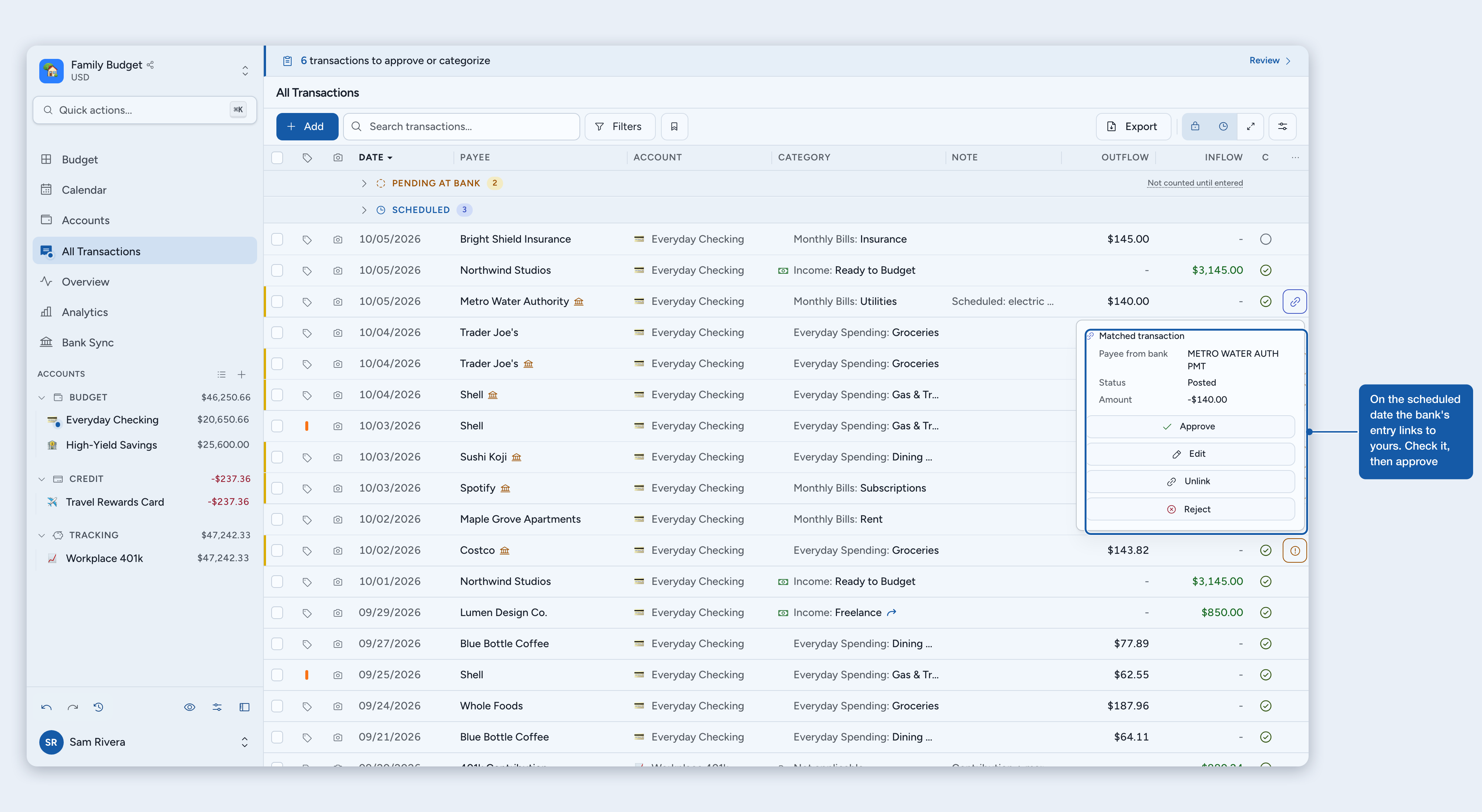
Open the link icon to see what the bank sent, including whether the bank shows it as Pending or Posted. On a phone, tap the row.
You do not have to wait for the date. Use Enter now on the scheduled row. It moves the entry to today and links it to the waiting import if the amounts are the same. Then approve the match in Review.
If the bank amount differs, select both rows and choose Match. Both rows must be in the same account. The entry takes the bank amount when you approve.
Approve: combines the pair into one transaction on your entry's date. For a recurring transaction, the next occurrence is already in Scheduled.
Reject: removes the bank import and keeps your entry as it is.
Unlink: separates the two rows. The bank import stays in Review on its own and won't match automatically again.
You can also match by hand. Select the import and the due row and choose Match. Match stays disabled while the scheduled date is still ahead and tells you to wait until it is due. Learn the full matching rules in Reviewing, matching & linking imported transactions.
Splits, transfers, and credit cards
A scheduled split or transfer is one transaction family. When it enters Review or is approved, Zerosum handles the parent, split lines, and transfer counterpart together so one leg cannot post without the others.
Credit-card spending and payments keep the normal credit-card routing rules. Upcoming spending can therefore warn the spending category and the relevant credit-card payment category before the transaction is posted.
Related guides
Was this helpful?
Still need help? Share an idea