Reviewing and matching imported transactions
Learn how imported transactions are reviewed, matched, approved, rejected, and unmatched, including pending-to-posted changes, bank payee icons, splits, and duplicates.
Written By Pedro
Last updated About 1 hour ago
Whenever a transaction arrives from a bank sync or a file import, Zerosum tries to recognize it, match it to something you already have, and keep anything uncertain in front of you to decide.
Where imported transactions appear
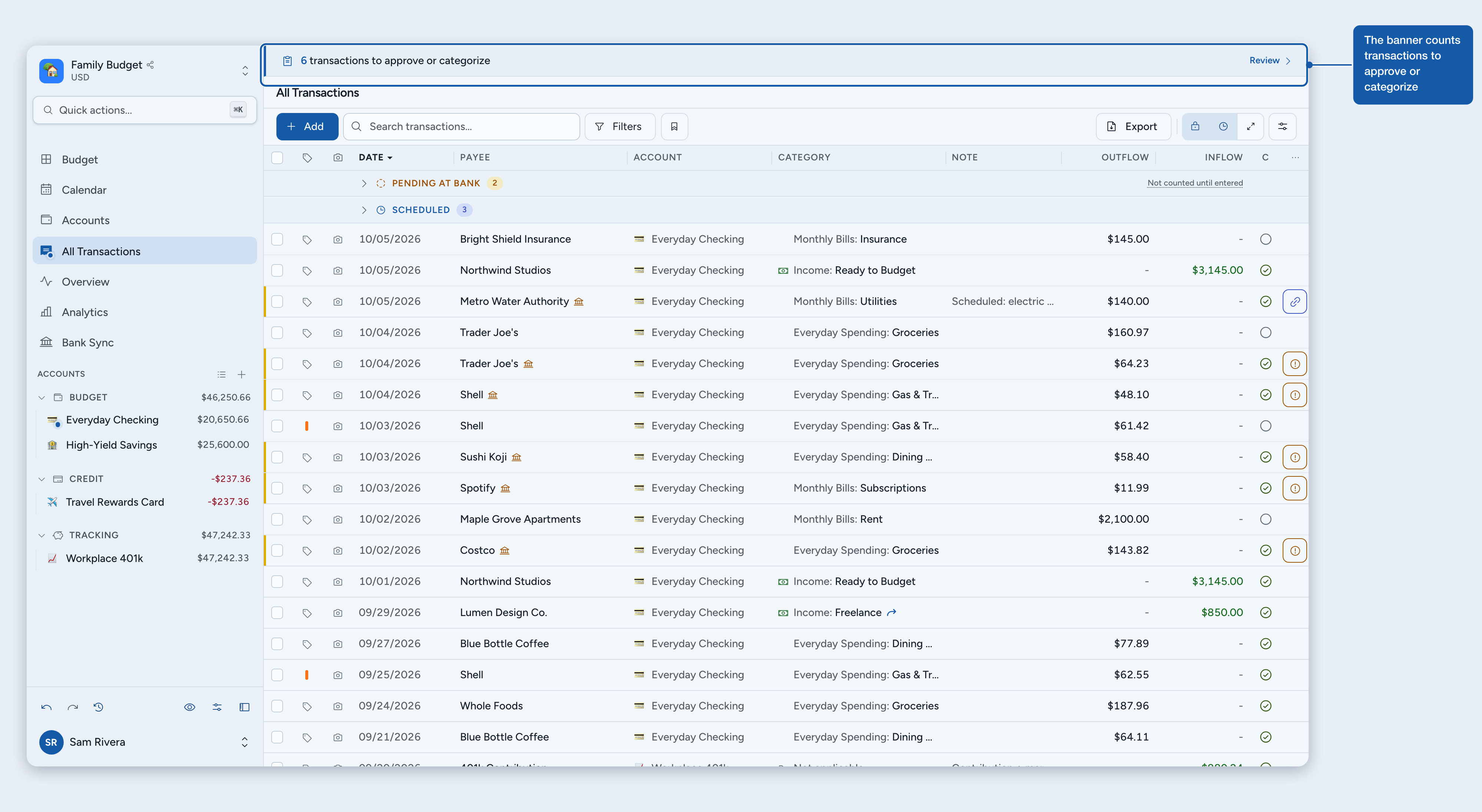
New bank transactions land in your register with an amber edge. They count toward your balances and budget as soon as they arrive, so approving only confirms them.
The banner at the top of every budget page counts what still needs you: N transactions to approve or categorize. Click it to see only those rows, then Done to go back. Your search and filters pause while you review.
Pending at bank
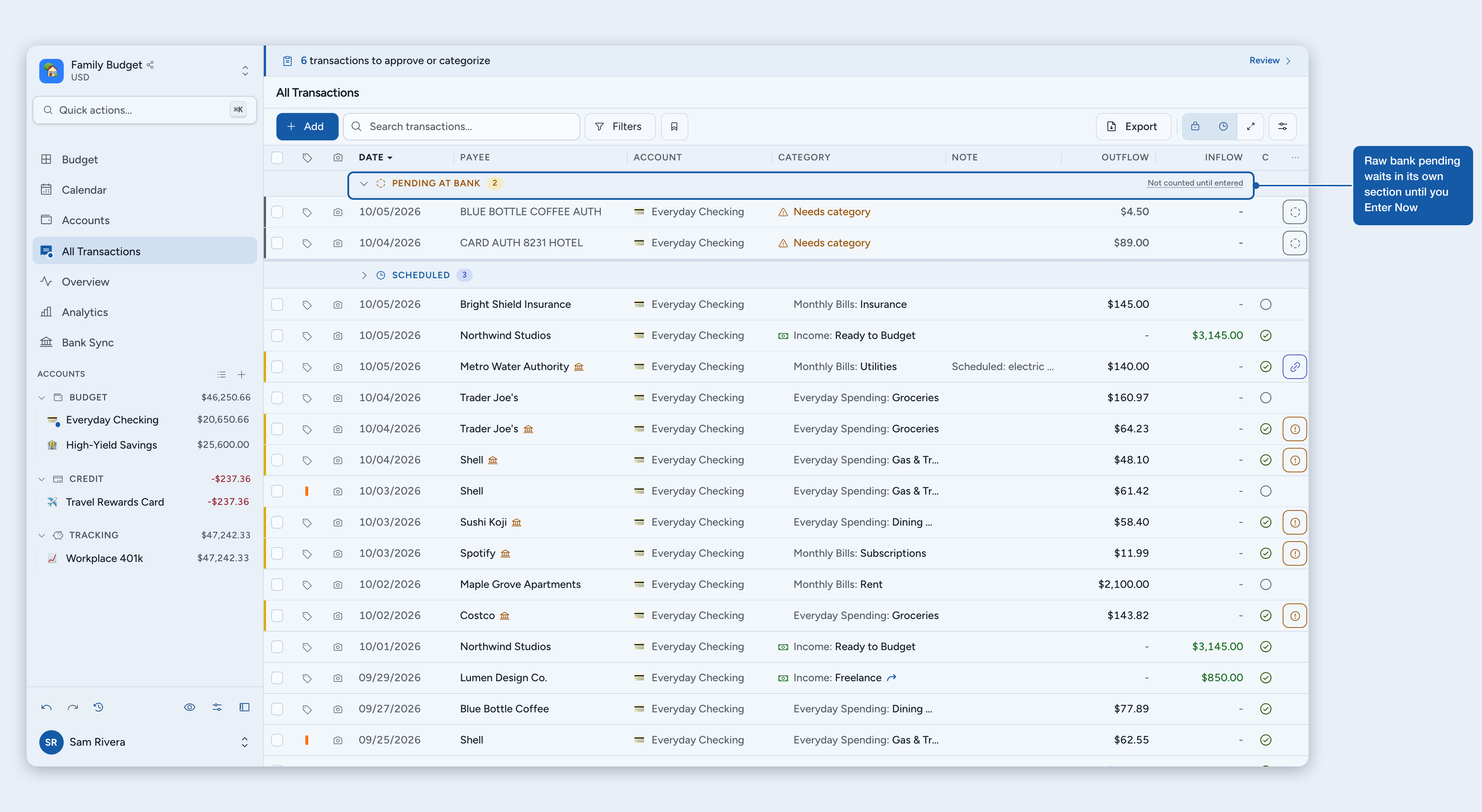
Pending charges, like a fuel hold or a hotel deposit, wait in their own greyed Pending at bank section. They don't count yet, because the bank can still change them.
Enter Now adds the charge to your register as an uncleared transaction. Editing it does the same.
Reject removes it. If the bank posts it later, it comes back.
Leave a charge alone to keep it waiting. To act on several at once, select them and use the selection bar.
Approve, edit, reject
Approve confirms the transaction and its category.
Edit changes any field. Saving a matched transaction approves it, and giving a scheduled one a future date sends it back to Scheduled.
Reject removes the bank transaction for good, so it won't import again. Undo brings it back.
Matched transactions
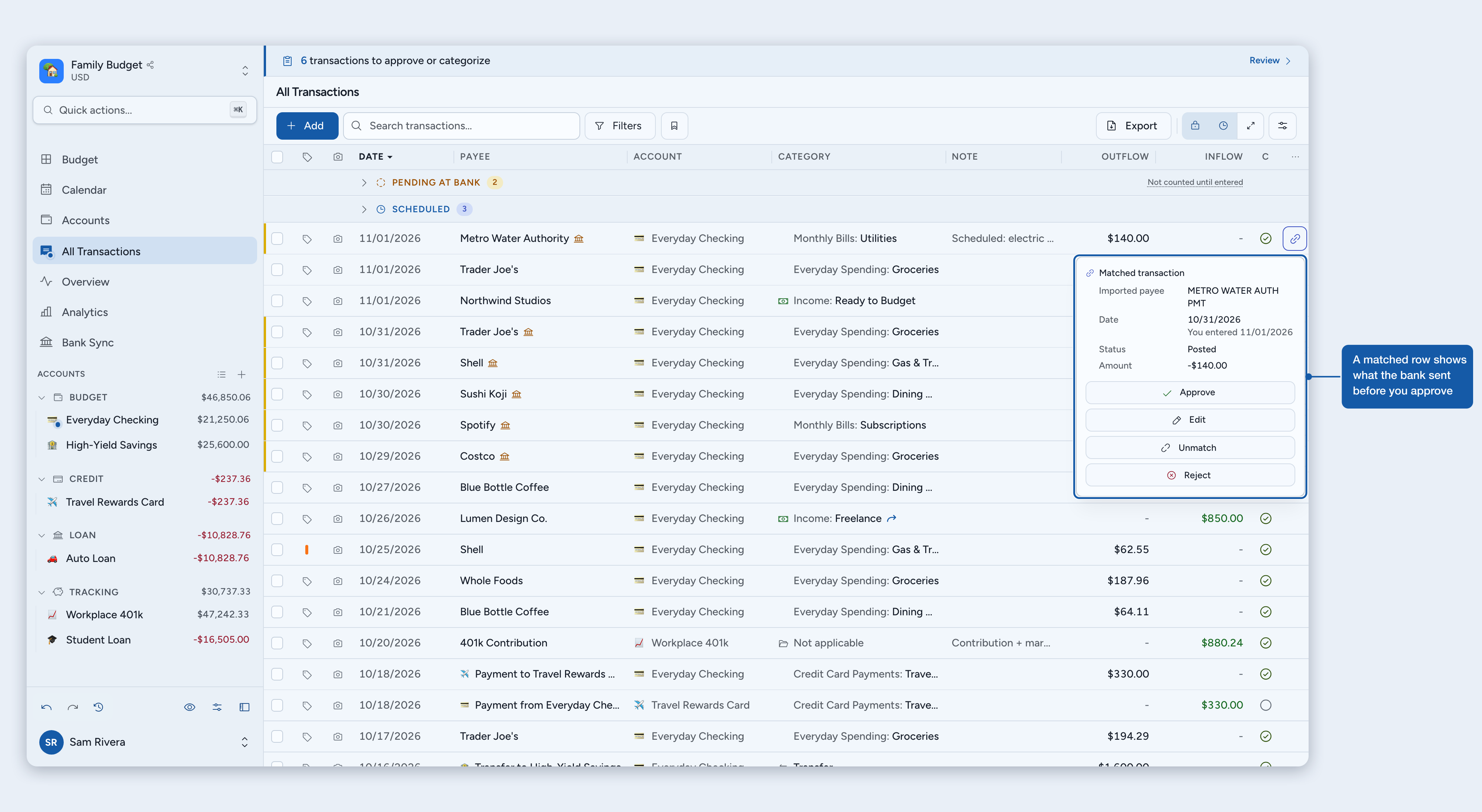
When a bank transaction belongs with one you already have, Zerosum shows the two as one Matched transaction. It keeps your payee, category and date, and takes the bank's amount and cleared status, so the money counts once.
Click the match icon, or tap the card on your phone, to see what the bank sent. Where the bank's date or amount differs, the panel also shows the other side's value: You entered for your own entry, or Before the match when you didn't type it, such as a pending charge or one side of a transfer.
Approve saves the pair as one transaction.
Edit lets you change it first. Saving approves it.
Unmatch (U) separates the two, and both stay. That bank transaction won't be matched automatically again.
Reject drops the bank transaction and keeps the other one.
Match two transactions yourself
Select the bank transaction and the transaction it belongs with, in the same account.
Choose Match, or press Shift + M.
Approve the match. If you had already approved the bank transaction, the two merge right away.
The amounts can differ, but both must be money in or both money out, and the other transaction must be due. A split only matches a bank transaction for its exact total. When a pair can't be matched, Match tells you why.
How automatic matching works
Same amount, close dates. A bank transaction matches an entry in the same account with exactly the same amount, dated within 10 days either way. A cent off is not a match.
Only once it's due. A scheduled transaction matches on its date, or as soon as you use Enter now.
Pending to posted. When a pending charge posts, Zerosum follows your bank's link between the two, or pairs them by exact amount within about a week, whatever the merchant text says.
No guessing. Identical charges pair up one to one, oldest first. When a match would be a guess, both transactions stay visible for you to decide.
When the bank posts before a scheduled date
The bank transaction waits in review until the scheduled date arrives, then the two match automatically if the amounts are the same. To match sooner, use Enter now on the scheduled transaction. If the amounts differ, select both and choose Match. See Scheduled & recurring transactions.
Common questions
Why is there a bank icon next to a payee? Your bank's text differs from the payee you see. Hover the icon, or open the transaction on your phone, to read it. A change in capital letters alone shows no icon.
The bank changed an amount after I approved it. The transaction takes the new amount on its own, with nothing to review. If you had changed the amount yourself, yours stays. A reconciled transaction takes the new amount too and stays reconciled, and your next reconciliation absorbs the difference.
A pending charge and its posted version both showed up. Select both and choose Match. If both are still pending, enter one first. If both have posted, approve one first.
I still see a duplicate. Compare the account, date, amount and bank text. Match them if they are the same transaction, or reject the one in review. Zerosum would rather show a possible duplicate than merge two real purchases.
Was this helpful?
Still need help? Share an idea