Side Panel
The budget side panel shows breakdowns, goals, Money Moves, trends, and notes for the month or categories you're viewing. Reorder and collapse sections to fit your workflow.
Written By Pedro
Last updated 4 days ago
The panel on the right of your budget shows details for the month you're viewing or the categories you've selected. When nothing is selected, it follows your current view, including search and filters. You can reorder and collapse sections to match how you read the page.
What the panel shows
- Month overview appears when no category is selected. It summarizes the viewed month, or the categories matching your search and filters.
- Category details appears when you select one category. Credit-card payment categories have their own payment details panel.
- Selected categories shows a combined summary when you select multiple categories.
Month overview, Selected categories and regular Category details share the same layout system: a stack of sections you can reorder and collapse. The order you set is saved to your account for this budget, so it follows you across devices, while which sections are open or closed is remembered per device: collapse a section on your phone without changing what you see on desktop. Credit-card payment details use their own section layout.
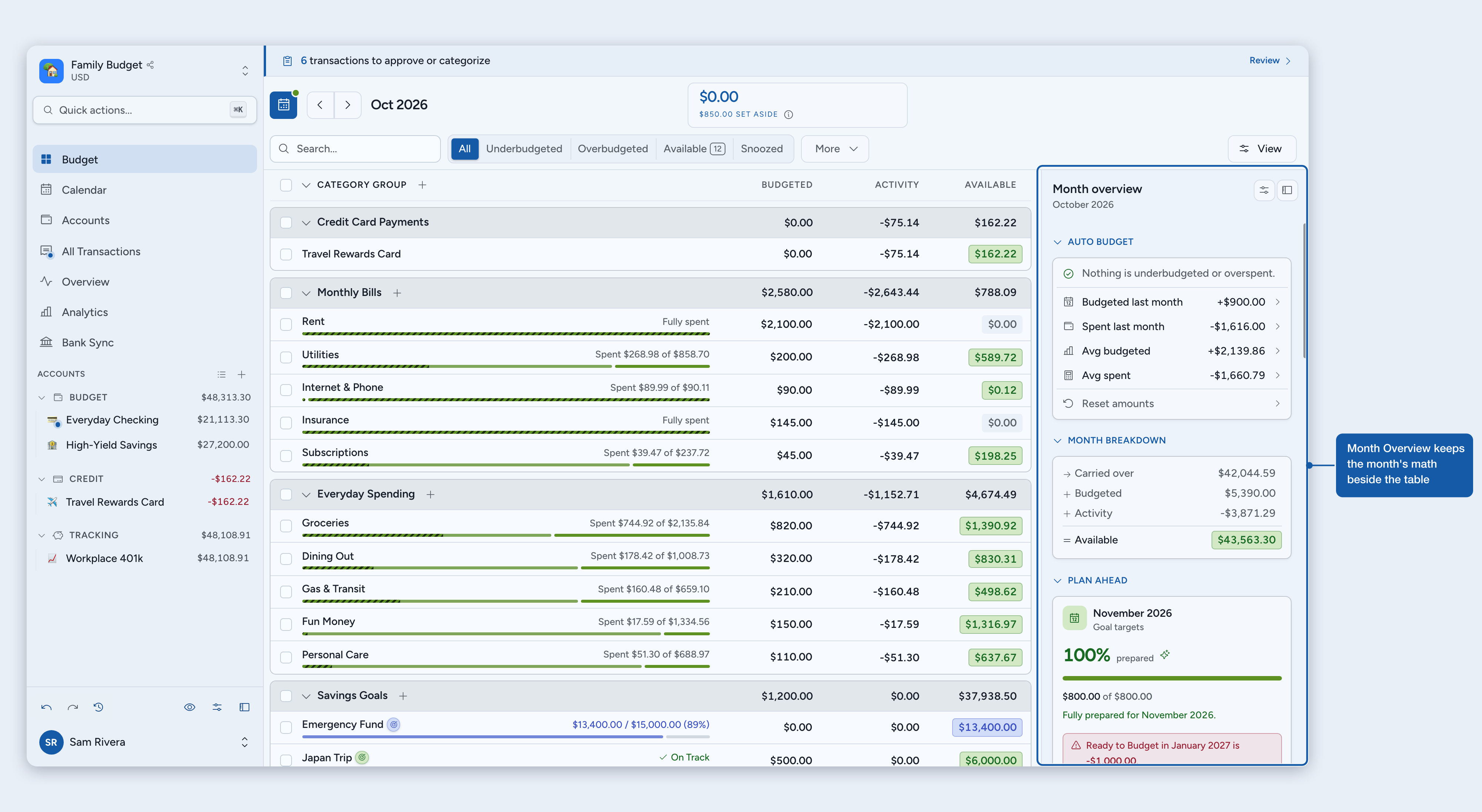
Month overview
Sections you'll find on the Month overview panel:
- Auto Budget: fill in budget amounts for the month, or for the categories in your current search or filter, with a preview before anything changes (see Budgets and Categories).
- Month Breakdown: Carried over, Budgeted, Activity, and Available for the month. If you pull money out of a category in the same month you budgeted others (for example, drawing from a buffer category), the Budgeted row splits into Budgeted to categories and Unbudgeted from categories so both directions are visible.
- Plan Ahead: how much of next month is already prepared, measured against your goals for next month, and a list of every later month you've budgeted ahead (see below).
- Goals: what your goals ask for this month, how much still needs budgeting, the categories making up that amount, and your expected income measured against your goals (see below).
- Scheduled transactions: one-off and recurring activity still waiting to post, including projected repeats and scheduled-created rows waiting in Review (see below).
- Budgeting Trend: a small chart of how you've budgeted money across recent months.
- Spending Trend: a small chart of how much you've spent across recent months.
- Spending Pace: how your actual spending compares to the money you had available, at this point in the month.
- Money Moves: read-only history of budgeting changes for the viewed month, narrowed to the categories in your current view.
- Notes: a free-form note attached to the month.
Plan Ahead
This section answers "am I set for next month, and how far ahead am I?". It appears on the current month only, when the panel shows the whole budget. The block at the top covers next month; under it, a ladder lists every later month you've budgeted ahead.
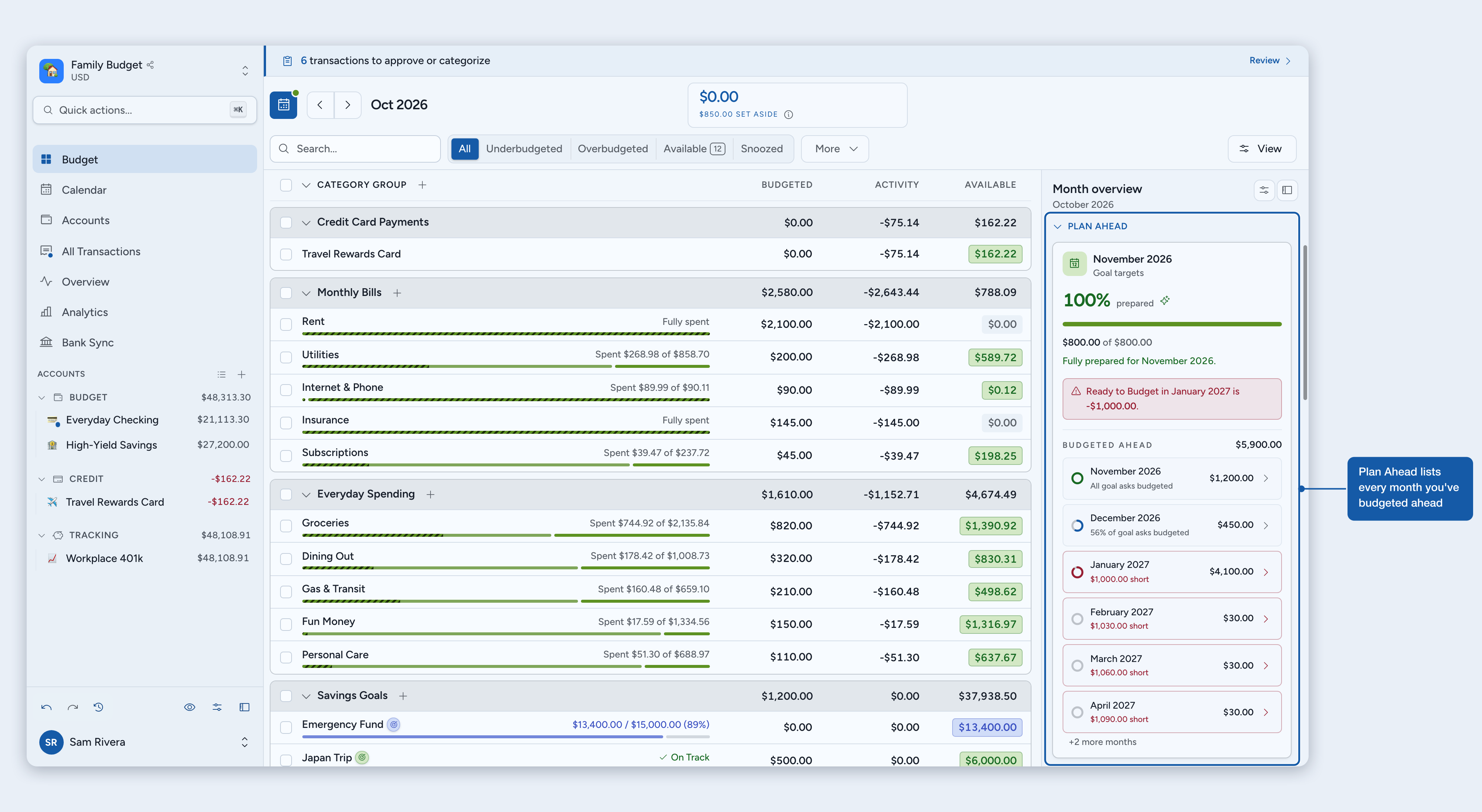
Next month
The block at the top shows a headline percent prepared, an amount covered line, and a short coverage state sentence: how much of next month you've already lined up, measured against what it would need to be fully funded. A source label under the month name notes what it measures against (Goal targets, Recent average, or No target yet). The same metric powers the Plan Ahead card on your Overview page.
The money it counts as lined up is anything budgeted to a category in next month, plus next month's Ready to Budget (this month's leftover that carries forward, plus income set aside for next month). Those never double-count; they're the same dollars at different stages.
Each goal counts only up to what it asks for next month, so extra money in one category can't make up for another that's short. Once next month is fully prepared, the extra shows as ahead. Next month's Ready to Budget can fill any category's gap.
When part of that money is still sitting in next month's Ready to Budget rather than budgeted to a category, a line under the sentence says so: Includes $400.00 still Ready to Budget in November.
Coverage state
The headline sentence tells you where next month stands. You'll see one of:
- Fully prepared. Next month is funded. If you've lined up more than next month needs, it also shows how much you're ahead.
- No funding needed. Your goals for next month already ask for nothing (for example, a Refill up to goal met by carryover). You're set.
- Left to cover. Next month is partially funded; the sentence shows how much is still left.
- Over-budgeted. Next month's Ready to Budget is already negative. Clear the deficit before preparing further. When the shortfall comes from this month's overspending, the sentence says so and tells you how much of it that is.
- Nothing tracked yet. No goals and no recent budgeting history, so there's nothing to measure against. Add a goal to start tracking.
What next month needs
This is what you'd need to fully fund next month: the sum of what your goals ask for next month (Budget another, Refill up to, and dated Reach a balance goals), excluding snoozed goals.
For Refill up to goals and Budget another goals with a Stop at cap, how much a goal asks follows your budget's Plan future months fresh setting in Settings > Budgeting: plan fresh counts the full goal amount, while carryover-aware counts only the shortfall after the balance likely to carry over. If a category has no goal, the card falls back to the average of the last three months you actively budgeted so the metric still has something to compare against.
Card states
- Covered (green): 100% funded, or funding rules already met by carryover.
- Over-budgeted (red): next month's Ready to Budget is already negative. Clear the deficit before adding more goals.
- In progress (neutral): partially funded; the card shows how much is left to cover.
- No target yet (neutral): no active goals and no recent budgeting history. Add a goal to start tracking.
Months ahead
Under the next-month block, Budgeted ahead totals everything you've budgeted in the months after this one, and a row lists each of those months: next month first, through the last month you've budgeted or the first month that is short, six at a time (any more are counted as +N more months). Select a row to open that month.
- The ring shows how much of that month's goal asks you've budgeted so far: a full ring when every goal is covered, a partial arc while it's underway, and a dashed ring when the month has no goals. It counts only money budgeted to those categories, so held Ready to Budget never fills a ring, unlike the next-month percent above it.
- The amount is what you've budgeted in that month, the same figure as that month's Month Breakdown.
- The sublabel reads All goal asks budgeted, 56% of goal asks budgeted, No funding needed (goals that already ask for nothing) or No goals. A short month reads $X short instead.
Goal asks for later months follow your Plan future months fresh setting, exactly as the next-month target does.
When a later month is short
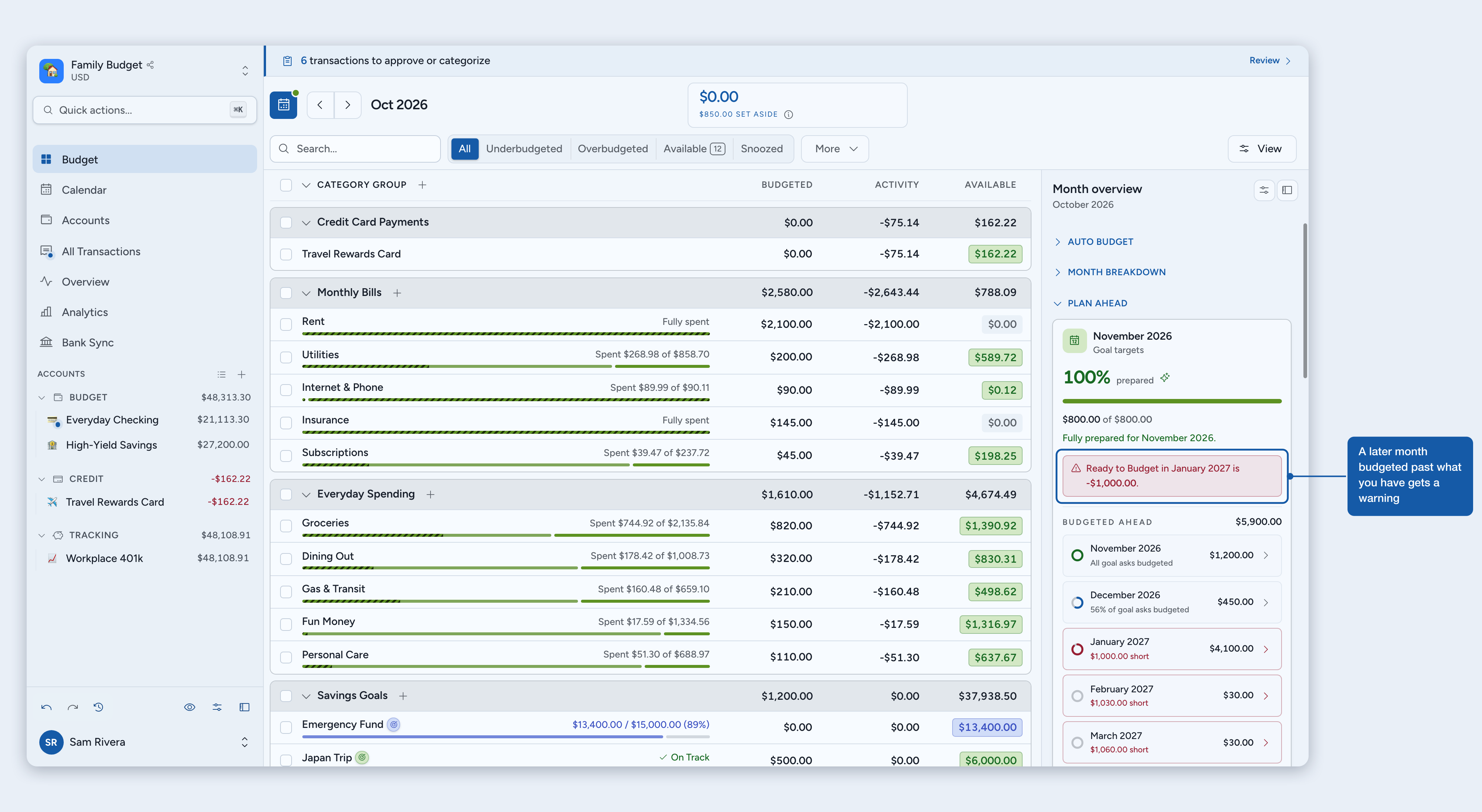
If you budget a later month past what this month can fund, its Ready to Budget goes negative. That row turns red and reads $X short, and a notice above the ladder names the first such month after next, for example Ready to Budget in January 2027 is -$1,000.00. The notice shows while this month's own Ready to Budget is not negative (that alarm belongs to the Ready to Budget card) and next month is not short itself (that belongs to the block above). Open the month to take money back, or budget more here first.
Expected income
The Goals card can also answer "does my income cover my plan?". Enter your expected income once (it applies to every month until you change it) and the card lays out the sum: expected income, minus this month's Monthly targets, equals Left after targets. A bar shows how much of your goals the income covers, and the total turns amber with a short note when your goals ask for more than you expect to earn.
- Add or edit it from the Goals card: click Add expected income, or the pencil next to the amount. Enter saves and Escape cancels. On mobile the amount pad opens directly; Done saves, and Remove expected income clears it.
- Monthly targets is the same figure the card's tile shows: what this month's goals ask for. Snoozed goals ask for nothing, and so do goals already covered by earlier months. On future months it follows your Plan future months fresh setting, exactly like Plan Ahead.
- Whole budget only. The sum is hidden while the panel is filtered to a view. Any member of the budget can change the amount, here or in Settings > Budgeting under Expected monthly income.
Scheduled transactions
The Scheduled transactions section summarizes planned account activity in the viewed month. It combines materialized scheduled rows with projected recurring occurrences, so a weekly bill that happens several times in one month is counted several times even though only the next row exists in the register.
- Outflows: total and count of planned money leaving accounts.
- Inflows: total and count of planned money entering accounts, shown when present.
- Total count badge: the combined number of scheduled occurrences.
- Next on: the earliest unresolved scheduled date in the month.
ℹ️ Scheduled intent is not the same as approval: future native scheduled rows and scheduled-created rows waiting in Review count here; ordinary unapproved bank or file imports do not. Splits count once at the whole-family amount in the month summary, while category-specific views attribute their individual lines.
These transactions do not affect balances or budget Activity until approved. For category funding warnings, scheduled inflows and outflows are netted in the category, and the warning remains while a due scheduled-created row waits in Review. Read Scheduled & recurring transactions for the complete lifecycle.
The section is hidden on past months. On a current or future month with nothing scheduled, it shows Nothing scheduled this month.
Category details
Sections you'll find on the Category details panel after clicking a category:
- Auto Budget: the same options as on Month overview, for this category only.
- Category breakdown: Carried over, Budgeted, Activity, and Available for the category.
- Budgeting trend: a small chart of how you've budgeted to this category over recent months.
- Spending trend: a small chart of how much you've spent in this category over recent months.
- Spending pace: how your actual spending in this category compares to the money you had available, at this point in the month.
- Goal: goal progress, or a card to set one up if the category has no goal yet.
- Scheduled transactions: one-off scheduled rows, scheduled-created review rows, and projected recurring occurrences for the category (shown only when there are any).
- Money Moves: read-only history of budgeting changes affecting this category in the viewed month.
- Notes: both a monthly note and a permanent note attached to the category.
Money Moves
See money budgeted, removed, or moved between categories, including auto-budget changes.
- Follows the month, search, filters, and categories you've selected.
- Available in all budget side panels, on desktop and mobile.
- Filter by All, Moved, or Budgeted. Expand auto-budget entries for details or choose Load more.
- Read-only: undo and redo through History.
- Keeps 90 days of actions, excluding undone changes. Undo has separate limits of 7 days and 50 entries.
Reordering sections
If you read the panel differently than the default order suggests (say, you look at Goals before the Month Breakdown), rearrange the sections to match:
- Open Arrange sections. Click the sliders icon (Arrange sections) at the top of the side panel header. A dialog opens listing every section in the panel.
- Drag to reorder. Grab the drag handle on any section and drop it into a new position. The order saves as soon as you drop.
- Close the dialog. Click outside it or press Escape. The panel reflects the new order immediately.
💡 Tip: The reorder dialog covers one panel at a time; its description names the panel you're editing (Month overview, Category details or Selected categories), and each panel keeps its own saved order.
Collapsing sections
Every section header has a chevron on the right. Click the header (or the chevron) to collapse the section so only its title stays visible; click again to expand. Collapse state is remembered per device, so a collapsed section stays collapsed next time you open the app on that device. Collapse and reorder are independent: collapsing a section doesn't change its position, and the order still follows your account across devices.
Mobile
On mobile, the side panel opens as a full-screen drawer instead of living permanently on the right. To open it:
- Month overview: tap the pie-chart icon in the top toolbar of the budget view.
- Category details: tap a category's name (or its status strip) to open its details drawer directly. Tapping the amount badge instead opens the quick-budget drawer, not the details.
Arrange sections and the collapse chevrons work exactly the same on mobile; the reorder dialog opens as a bottom-sheet drawer on top of the panel.
Where to next
Was this helpful?
Still need help? Share an idea