Multiple Budgets
Learn how to use multiple budgets in Zerosum. Create separate budgets for different financial goals or accounts.
Written By Pedro
Last updated 15 days ago
Each budget in Zerosum is completely independent, with its own accounts, categories, and transactions. Create separate budgets when you have distinct financial contexts to keep organized.
When to use multiple budgets
Because budgets never share data, a second budget is the right tool whenever you want a clean wall between two parts of your financial life. Common reasons:
- Personal vs business: keep freelance or business income separate for taxes.
- Individual vs joint: a personal budget alongside a shared household one.
- Different currencies: manage finances in more than one currency separately.
- Project-based: track a specific project, event, or renovation on its own.
Creating a budget
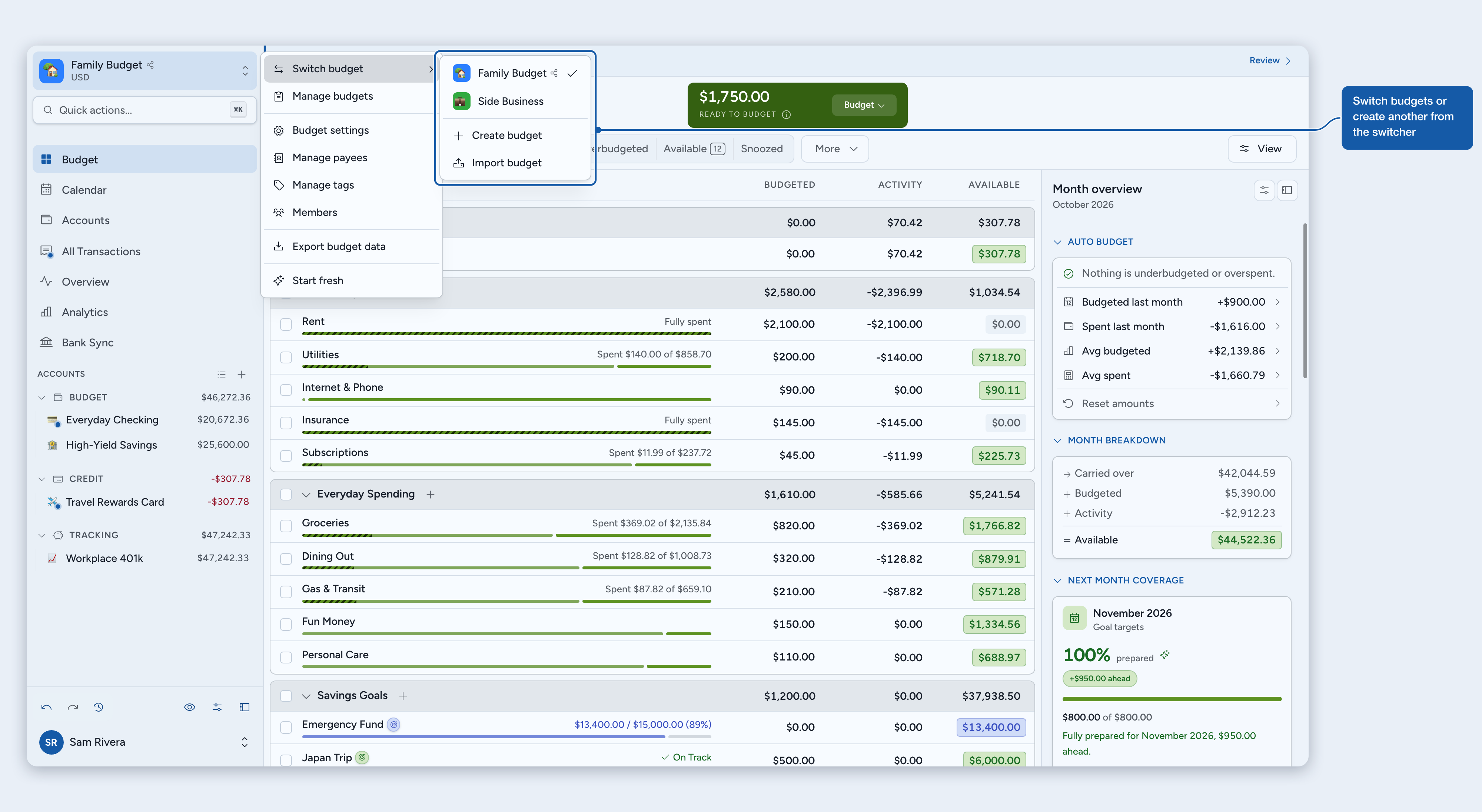
- Click your current budget name in the sidebar to open the budget menu.
- Open Switch budget, then click Create budget.
- Give it a name and icon, and set the currency, date format, number format, and currency placement.
- Leave Help me set up categories on for a guided setup, or turn it off to start fresh with your own categories.
Switching budgets
Click your budget name in the sidebar, open Switch budget, and pick another. It opens on your home page, which is the Budget page unless you choose another in Settings > Navigation. Zerosum remembers the last budget you opened and loads it automatically the next time you sign in.
Reordering your budgets
Open Manage budgets from the budget menu and drag the grip handle on any budget card to arrange your budgets in the order you want. That order is used everywhere you pick a budget: the Switch budget menu in the sidebar and the command palette.
A few things worth knowing:
- The order is personal to you. If a budget is shared, every member arranges their own list, so your order never changes what anyone else sees.
- It covers every budget you can see, including ones shared with you, and you can mix owned and shared budgets freely in one list.
- Your arrangement syncs across your devices.
- A budget you just created, or one newly shared with you, appears at the end of the list until you drag it into place.
Backups and restores
Open Manage budgets to duplicate, export, or delete budgets you own, and to download or restore their automatic backups. Automatic backups are stored on the server, and restoring a backup creates a separate restored budget instead of overwriting your current one.
ℹ️ Important: Zerosum does not restore budgets from uploaded files. Restore uses a server-side backup ID, so backups can't be used to bypass account boundaries.
Learn more in Backups & Data Exports.
Budget settings
Each budget has its own name, icon, currency, date format, number format, currency placement, and time zone. Everyone in the budget shares these settings.
To change them, click your budget name in the sidebar and choose Budget settings. This opens Settings > General for the budget you are in. Make your changes, then select Save changes, or Discard to go back to the saved values. You can also choose Budget settings from a budget's row menu in Manage budgets.
The owner and members can both change these settings, except the time zone, which only the owner can change. The time zone decides when each day starts and ends for the budget. A new budget takes the time zone of the device it was created on, and it does not follow your device after that. See Budget time zone.
If you have more than one budget, use Switch budget in Settings, under the budget's name, to choose which budget's settings you are changing.
ℹ️ Note: Changing the currency updates how amounts are displayed (symbol and format). It does not convert existing values.
Deleting a budget
To delete a budget you own, open Manage budgets, open the budget's row menu, and choose Delete. You'll confirm by typing the budget name. This permanently removes every account, transaction, category, and goal in that budget.
⚠️ Warning: Deletion can't be undone. Export your data first if you might need a backup.
Currencies, number formats, and date formats
Zerosum supports USD, EUR, GBP, JPY, CAD, AUD, and many more currencies.
Number formatting
Choose the number style that matches how you read amounts:
- 1,234.56: comma thousands, dot decimal
- 1.234,56: dot thousands, comma decimal
- 1 234,56: space thousands, comma decimal
- 1 234.56: space thousands, dot decimal
- 1'234.56: apostrophe thousands, dot decimal
- 1,23,456.78: Indian comma grouping, dot decimal
Date formatting
Choose the date format you prefer for transaction and schedule dates:
- DD/MM/YYYY: 30/12/2026
- MM/DD/YYYY: 12/30/2026
- DD-MM-YYYY: 30-12-2026
- DD.MM.YYYY: 30.12.2026
- YYYY-MM-DD: 2026-12-30
- YYYY/MM/DD: 2026/12/30
- YYYY.MM.DD: 2026.12.30
Currency placement
Control how the currency is shown in the interface: Before amount (for example €123,456.78), After amount (for example 123,456.78 €), or Don't show (just the number, no symbol).
Multiple currencies
Create a separate budget for each currency. Zerosum doesn't auto-convert, so record transactions at their actual exchange rates when needed.
Where to next
Was this helpful?
Still need help? Share an idea