Budgets & Categories
Learn how to create and manage budget categories in Zerosum. Organize your spending with category groups and budgets.
Written By Pedro
Last updated 4 days ago
This guide covers how categories track your money, how to organize and filter them, how to budget, move money, read the status bars in the budget table, and how to customize category colors. You can edit a category or category group to change its color, or turn off Show category colors in Settings > Appearance. Analytics charts keep their colors either way.
How categories work
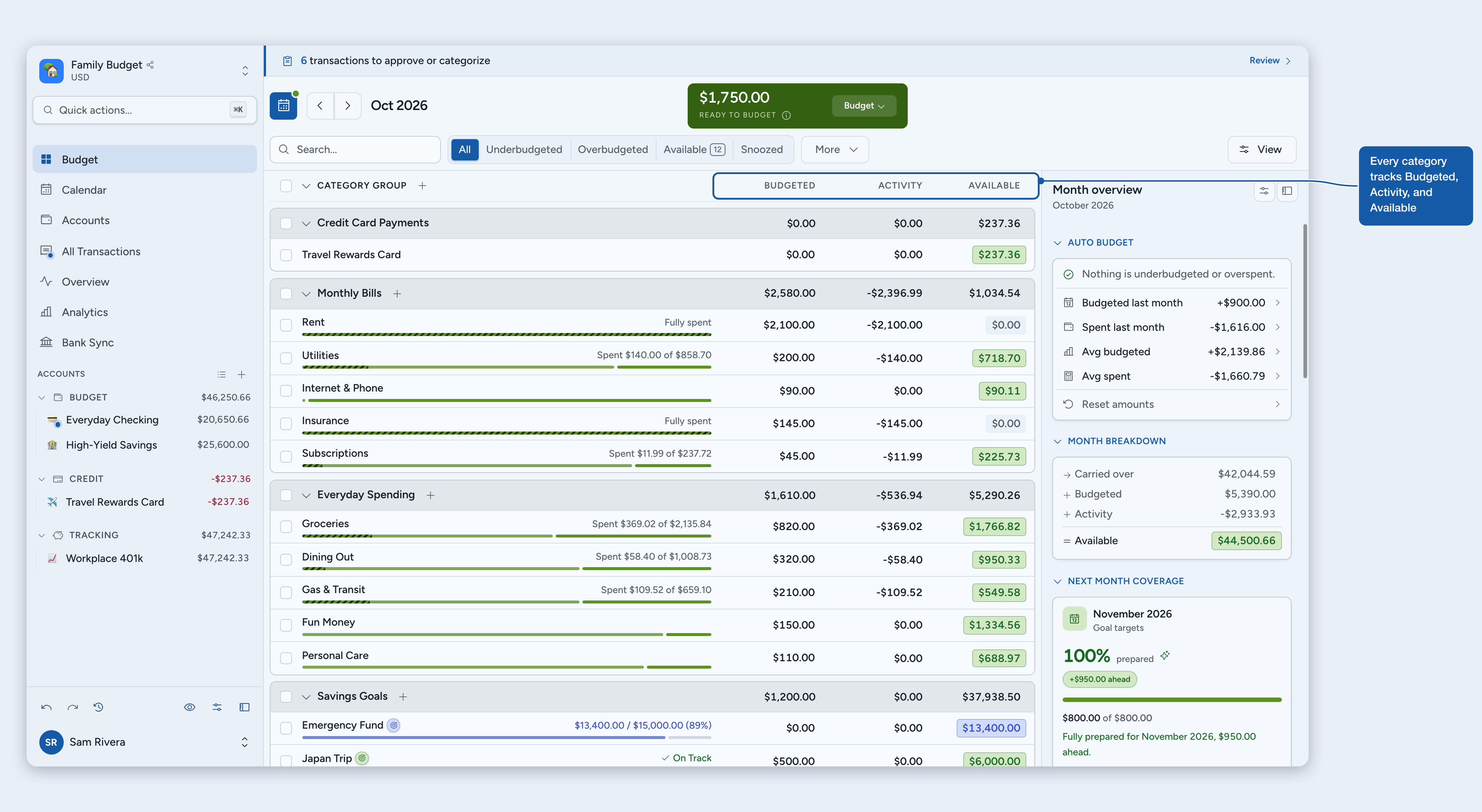
Categories represent purposes for your money: rent, groceries, fun money, savings. Each category tracks three key numbers:
Budgeted: money you've budgeted to this category this month.
Activity: spending (negative) or refunds (positive) this month.
Available: what you can spend right now (carryover + budgeted + activity).
💡 Tip: Focus on Available for spending decisions. It includes any leftover carried over from previous months.
Common category ideas
Fixed expenses: rent/mortgage, utilities, insurance, subscriptions, phone bill.
Variable expenses: groceries, gas, dining out, entertainment, personal care.
Savings: emergency fund, vacation, holidays, car maintenance, home repairs.
Debt: student loans, car payment, medical bills, debt payoff goals.
Row status bars
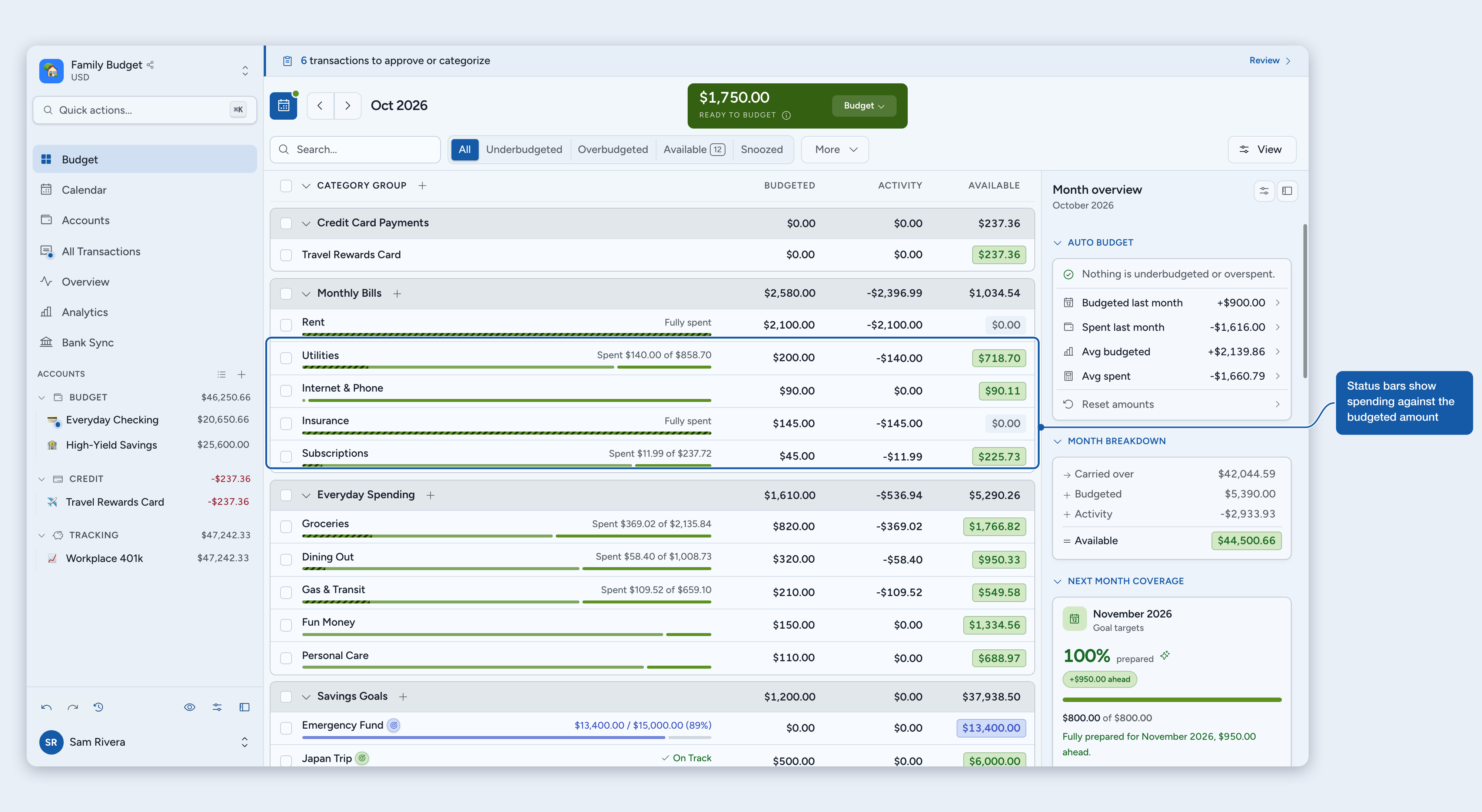
Each category row can show a small progress bar. There are five bar modes, plus two independent toggles, so you can pick what you want to see at a glance:
Combined bar (default), Spending bar, Goal bar, Split bars, or No bar.
Summary text and Compact rows switches, set separately.
Click View above the budget table and choose a bar mode under Row bars. Summary text is a separate switch in the same menu. You can also set both in Settings > Tables and lists.
💡 Tip: Turn on Compact rows in the same View menu to tighten the table so more categories fit on screen. It applies on larger screens, and the choice syncs across your devices. In Settings > Tables and lists it is called Compact budget rows. (Transactions have their own Compact rows switch in the register's View menu.)
Reading a bar
Tick marks under a bar split it into sections; the shape and color tell you the state of each section.
Shapes:
Gray track: the empty bar background, shown wherever a section has no money in it yet.
Solid capsule: funded capacity. Its width matches how much is funded; the rest sits on the gray track. Appears in every mode.
Carryover capsule: money from last month, always the leftmost section, in a lighter shade of the section's color.
Dashed overlay: spending, consuming capacity from the left in the section's status color. The dashed rule is universal: every dashed section is spending.
Red dashed tail: overspending beyond what's available.
Status colors (shared by capsules and dashed overlays alike):
Green: funded or on track.
Yellow: needs money this month or period.
Blue: an open-ended Reach a balance goal's progress.
Red: overspent.
Combined bars with goals
Combined bars reuse the same goal progress that powers goal cards and peeks, reshaped for a budget row. Weekly and biweekly goals (Budget another and Refill up to) show one slot per funding date across the month; on a weekly or biweekly Refill up to goal, leftover money fills the earliest slots first. Monthly, yearly, dated, and open-ended goals show a single pool sized to this month's ask, with carryover counted only once.
If a category has no active goal, or the goal is snoozed for the month, Combined and Split fall back to the spending bar. Goal mode shows no bar for that row, because there's no active goal progress to display.
ℹ️ Need the goal details? The goals article explains how each behavior counts money and why weekly and biweekly goals split into funding dates. See where goals show up.
Personalized category setup
When creating your first budget, enable Help me set up categories to answer a few quick questions and get personalized recommendations:
Housing & transportation: whether you're paying a mortgage, renting, or living with family, and how you get around (car, public transit, bike/walk).
Lifestyle: whether you have pets, how often you dine out, and whether you have subscriptions.
Financial goals: what matters most: emergency fund, vacation, retirement, or major purchases.
💡 Tip: Based on your answers, Zerosum creates categories like Pet Care, Gas, or Dining Out. Essentials like Groceries, Healthcare, and Personal Care are always included. You can skip the questionnaire and customize categories later.
Organizing with Category groups
Category groups let you organize related categories together. They're collapsible, show combined totals, and keep large budgets manageable. For example, a Fixed Expenses group might hold Rent, Utilities, and Insurance, with a running total in the header.
Create a group with the Add category group button: the + in the "Category group" column header (on mobile, the Group button in the toolbar). Rename or delete a group from its right-click menu (Edit group / Delete group); a group can only be deleted once it's empty.
Click View and choose Organize categories to open a dialog where you can drag categories to reorder them, move them between category groups, and reorder whole category groups.
On desktop, click View and choose Compare months to view two months side by side (see below).
Collapse groups you don't need to see regularly. The chevron at the top left of the table expands or collapses every group at once, and Cmd/Ctrl + Arrow Down or Cmd/Ctrl + Arrow Up does the same from the keyboard. On mobile, use Expand all groups or Collapse all groups in the View menu.
Group totals update automatically as you budget.
Income categories
Income categories label where your money comes from, such as Salary, Freelance or Interest. They are optional. Money categorized to one still lands in Ready to Budget, exactly like income categorized to Ready to Budget itself: there is no separate balance to budget from, and nothing to fund.
Create one in Settings. Go to Settings > Budgeting, click Manage next to Income categories, then Add income category.
Or while entering a transaction. Type a new name in the category picker, choose Create, then pick Income category under "Or track it as income".
Always green, with an icon. Income categories share one color and a money icon, so income reads the same everywhere, even with category colors turned off. In pickers, filters and the register they sit under an Income group next to Ready to Budget.
Rename or archive. Both live in the Manage income categories dialog. Archiving removes a category from pickers and payee autofill. Transactions and recurring transactions that already use it keep it, and you can restore it any time from the Archived list. Income categories can't be deleted, so your history always stays labeled.
Not in the budget table. Income categories hold no money, so they have no budgeted amount, no goal and no row in the table.
Earlier income stays put. Income you already recorded keeps its category until you change it. To relabel history, select the transactions and recategorize them.
See it in reports. The income views in Analytics can group income by category instead of by payee.
ℹ️ Note: To hold a Salary paycheck for next month and keep its label, turn on Set aside for {next month} on the transaction, or turn on Set aside by default for Salary. See Set aside for next month.
A budget can have up to 100 income categories, with names up to 100 characters. "Ready to Budget" is reserved.
Favorite categories
Star the categories you reach for often. They appear in a Favorites group pinned above your category groups on the budget page, and in a Favorites section at the top of the category picker when you add or edit a transaction, on desktop and mobile. Add the Category Watch widget to your Overview page to see what is left in each favorite at a glance, with the same colors as the budget.
To favorite or unfavorite a category, tap the star beside it in the category picker, use the star in the category's details panel, or right-click the category on the budget page and choose Add to favorites.
Still in their groups: a favorite also stays in its own category group, so group totals stay complete. Collapse the groups you rarely touch and Favorites becomes your short budget.
Ordered like your budget: favorites follow the order of your category groups and the order inside them. There is no separate manual order.
A group in its own right: the Favorites header sums its categories, collapses with the rest, shows a count while collapsed, and its checkbox selects every favorite at once.
Search and filters apply: a favorite the current filter hides leaves the Favorites group too, and the group disappears when nothing is favorited.
Hidden categories: a hidden category can't be favorited, and hiding a favorite removes it from Favorites until you unhide it.
Budget page switch: to keep the group off the budget page, click View and turn off Favorites group, or turn it off in Settings > Tables and lists. This changes only your own view. The category picker keeps its Favorites section.
In the picker, favorites sit above Last used. A category that is both shows once, under Favorites, and both sections hide the moment you start searching. In a shared budget, favorites are shared by every member.
Filtering the table
The filter bar above the budget table helps you focus on a subset of categories: overspent ones, categories you're saving into, or a custom selection of your own.
Built-in filters
Click a chip on the filter bar to show only matching categories. Click it again (or click All) to clear. The search box narrows by category or group name and combines with any active filter.
Overspent: categories that spent more than they have available.
Underbudgeted: categories that need money now: overspending, goals that aren't on track this month, or upcoming bills the available money won't cover.
Overbudgeted: categories holding more than their goal currently needs: Refill up to goals over their target, and Budget another goals over their Stop at cap. With Plan future months fresh on, that extra shows only once a future month becomes the current month.
Available: categories that still have money to spend.
Snoozed: categories whose goal is snoozed for the current month.
No goal: categories without a goal. Useful when deciding where leftover money should go.
Has goal: categories with a goal, including snoozed goals and goals that start in a future month.
No goal and Has goal start in the More ▾ menu. Pin them from Customize filters if you use them often.
💡 How upcoming bills are counted: Zerosum combines future scheduled rows with projected recurring occurrences for the viewed month. A scheduled-created row keeps its funding warning after it reaches Review, until you approve or reject it; ordinary bank imports never count as scheduled funding. See Scheduled & recurring transactions.
Custom filters
Save your own filter (a curated set of categories or entire groups) and give it a name. Handy for tracking subsets like Fixed bills or Family spending.
Open the More ▾ menu on the filter bar and choose Customize filters…
Click New custom filter.
Name it and check the categories or groups to include. Selecting an entire group is dynamic: categories added to that group later automatically join the filter.
Save. The new filter appears on your bar and activates right away.
ℹ️ Note: Custom filters are shared with everyone on the budget. Your bar layout (which filters are pinned, and in what order) is personal.
Pin, reorder, and hide
Not every built-in is useful to you. Open Customize filters to choose what shows on the bar. Up to eight filters can be pinned; the rest live in the More ▾ menu, still one click away.
Pin / unpin any filter with the pin toggle, built-ins and customs alike.
Reorder within a group by dragging the grip handle on any row. Use the pin toggle to move a filter between Pinned and Available.
Edit or delete a custom filter in place. Deleting removes it for every member of the budget.
Reset pinned filters restores the five built-in defaults without touching any custom filter definitions.
Comparing two months side by side
On desktop, you can view two budget months at once, useful for planning ahead, spotting spending trends, or reconciling differences between months.
Click View and choose Compare months. The table extends to show a second month-trio of columns (Budgeted / Activity / Available) for the previous month by default.
Each pane has its own month nav and Ready to Budget card, and both months are fully editable. Budgeting to a category in one pane updates carryover in the other.
Use the Link month navigation toggle (the chain icon) to link the two month navs. When linked, advancing or jumping (Today, prev/next) in one pane shifts both, preserving the offset. Use it to scroll through consecutive months, or to compare year-over-year (e.g. March 2024 vs March 2025).
The older month always sits on the left, the newer on the right.
Click the X (Exit compare mode) to leave. Mobile keeps the single-month view; comparing is desktop-only.
Budgeting money to categories
This is where zero-based budgeting happens:
Check your Ready to Budget amount at the top.
Click any category's Budgeted field.
Enter the amount you want to budget and press Enter.
Repeat until Ready to Budget reaches zero: every dollar has a plan.
To budget without scrolling, click the Ready to Budget card and pick a category. The amount fills in with what that category needs; confirm with Budget $X.
Budgeting tips
Prioritize essentials: budget housing, food, and utilities before entertainment.
Use goals: set up goals to see exactly how much you need each month.
Budget what you have: don't budget money from paychecks that haven't arrived yet.
Set income aside for next month: turn it on for a transaction, or as an income category's default. See Set aside for next month.
Moving money between categories
When one category needs more, move money in from another. This is how zero-based budgeting stays flexible.
Click (desktop) or tap (mobile) a category's Available amount. The move tool opens already pointed the right way for that category:
Overspent: money comes in to cover it, from Ready to Budget unless you pick another source.
Short of a goal, an upcoming bill, or a card payment: money comes in for what it still needs.
Holding money with nothing outstanding: money goes out to a category you pick. For a credit card payment category, the amount starts at only what you budgeted beyond the card's balance, so it starts blank when the card is exactly covered.
Any category that holds money can go the other way too: choose Move money in instead or Move money out instead. An amount you already typed stays.
Pick the other side under From or To: another category, or Ready to Budget.
Check the amount. It starts at what the category needs, or at everything the source can give. When you pick where the money goes, it narrows to what that category needs, never more than the source holds. Once you type an amount, it stays yours: picking a category never changes it.
Confirm with Budget $X or Unbudget $X when one side is Ready to Budget, Move $X between two categories, or Cover $X when fixing a negative balance. Both balances update instantly.
Who needs money: when you choose where money goes, the list starts with a Needs money section. Overspent categories come first, then categories short of a goal, an upcoming bill, or a card payment, each showing the amount it needs.
Covering part of a need: when the amount is less than what the receiving category needs, a line under it says how much it covers, for example "Covers $20.00 of the $50.00 Groceries needs".
Moving more than the source has: a warning shows how much more, for example "$40.00 more than Ready to Budget has". You can still go ahead; the source just goes negative.
Covering overspending: when a category goes negative, the move tool opens with the overspent amount filled in and Ready to Budget as the source. The source list shows Ready to Budget plus only the categories that have money available. Pick a smaller source and the amount drops to what it holds, with a line showing how much of the overspending it covers. On mobile, the red overspending banner opens a sheet listing every overspent category; tap one to cover it, or cover them all from Ready to Budget in one tap when it has enough.
Covering from a future month: while covering, a From month selector appears if upcoming months hold budgeted money. Pick a month to see only the categories with money budgeted there, then choose one to pull that money into the current month. A category can give at most what you budgeted in it that month (carryover stays put), and the amount adjusts when the source is smaller. The overspent category itself can be a source, so you can borrow from its own future budget. One undo reverses the whole move.
From the Ready to Budget card: click the card, pick a category under To, and the amount narrows to what that category needs. When Ready to Budget is negative, the card's button reads Cover: pick a category under From to take money back from it.
Budgeting what a category needs on mobile: in the Budgeted editor, the Needs $X shortcut fills in exactly what the category needs, whether that is a goal, an overspend, an upcoming bill, or a card payment.
ℹ️ Note: Moving money never changes your total budget; it only reallocates where dollars are budgeted. You can undo at any time from the sidebar or with the keyboard shortcuts.
Auto-budget options
The Auto Budget section of the side panel fills in budget amounts quickly, without editing each category by hand. It's the first section by default, on desktop and in the mobile Month overview and category drawers, and you can collapse it or move it like any other section. Each line shows how much it would change Budgeted, and nothing changes until you confirm its preview:
Underbudgeted: fund what needs money this month: cover overspending, fund goals, then cover upcoming bills, until Ready to Budget runs out.
Budgeted last month: copy what you budgeted last month into this month.
Spent last month: budget based on last month's actual spending.
Avg spent: smooth out variations with a 12-month spending average.
Avg budgeted: budget the average of what you budgeted over the last 12 months.
Cover overspending: top up only the categories that overspent.
Reduce overbudgeted: pull back money from categories holding more than they need. It never takes more than a category still has, and it leaves enough for its upcoming scheduled transactions.
A line that would change nothing shows No change. A line that can't run right now, for example when Ready to Budget is empty, says why underneath it.
A collapsed Reset amounts group at the bottom offers Reset budgeted (clear this month's budgeted amounts) and Reset available (zero out positive Available balances). Reset available first uses the freed money to cover any overspent categories in the same run, then returns the remainder to Ready to Budget. If there isn't enough to cover everything, categories are covered in the order they appear in the table.
How Underbudgeted decides
It works through three needs in order, funding each category to its largest single need and never twice: cover overspending, fund goals, then cover upcoming scheduled bills.
A goal's ask follows its behavior: Budget another wants its amount budgeted for the period, Refill up to wants the gap between the target and what the category already holds, and a dated Reach a balance goal wants this month's slice toward the balance.
For example, a category with a $50 goal and a $50 bill due this month gets $50, because the goal already covers the bill. If the bill were $80, it gets $80 ($50 toward the goal, $30 for the rest of the bill).
Preview before applying
Every option opens a preview first. It says in one line what the option does, shows the change to Budgeted and what Ready to Budget will be afterwards, and lists each category with its current and new amount. If a change would leave a category with less than it has already spent, that line says how far below zero its Available would go. Deselect anything to skip it; the button names the money, like Budget $120.00 or Free up $80.00.
Underbudgeted groups the categories it will fund by reason (overspending, goals, and upcoming bills), each with its own total. If Ready to Budget runs out, its line in the side panel shows how much it covers (for example, Covers $400.00 of $550.00), and the preview shows what was funded and what was skipped.
Auto-budget selected categories only
Select specific categories with their checkboxes, or search or filter the budget, and the Auto Budget section works on just those categories.
How carryover works
Leftover money carries forward automatically. Budget $400 for groceries, spend $350, and $50 shows up next month as starting Available.
Overspending works differently. By default, a negative balance does not carry forward: the category resets to $0 next month, and the overspent amount reduces next month's Ready to Budget.
⚠️ Warning: Cover overspending within the same month by moving money from other categories, to avoid a surprise reduction in next month's Ready to Budget.
If you'd rather the deficit stay on the category, enable Carry over negative balances in Settings > Budgeting.
Credit-card-funded overspending is the exception: it is already debt on the card, so it resets from the category either way and never reduces Ready to Budget. See Carry over negative balances.
Adding notes
Add context to your budget with notes, great for remembering why you made certain decisions. Three types are available:
Category notes (permanent): reference info that stays the same across months, like how you calculated a budget amount ("Rent $1,200 + Insurance $200 + Parking $50 = $1,450/mo"). Click the category to find it in the side panel.
Category monthly notes: month-specific annotations for a category ("Budgeted extra for holiday gifts", "Skipped gym while traveling"). Tied to a specific month and shown below the permanent note.
Month overview notes: budget-wide notes for the month ("Got a bonus this month", "Car repair coming up"). Find them in the Notes section of the month overview panel, the side panel's default view (on mobile, tap the Month overview icon).
Where to next
Was this helpful?
Still need help? Share an idea