Import from YNAB
Learn how to import your YNAB budget into Zerosum. Migrate accounts, categories, transactions, transfers, and monthly budgeted amounts.
Written By Pedro
Last updated 18 days ago
Bring your accounts, categories, transactions, transfers, goals, scheduled transactions, and budget history from YNAB into Zerosum. YNAB now calls a budget a plan, so this guide says plan for YNAB and budget for Zerosum. There are two ways to import, and both read the same data from the YNAB API. Pasting a token is the easiest.
Get your YNAB API token
Both methods need a Personal Access Token from YNAB.
Sign in to YNAB at app.ynab.com.
Open Developer Settings: open the menu under your plan name, choose Account Settings, then Developer Settings. Or go straight to app.ynab.com/settings/developer.
Create a new token: under "Personal Access Tokens", click New Token, enter your password, and click Generate.
Copy the token: it appears once at the top of the page right after you click Generate. Copy it immediately.
⚠️ Warning: The token is shown only once, at the top of the page right after you click Generate. The value listed under "Personal Access Tokens" further down is masked (a row of X's) and is not your token; copying it fails with an "Invalid or expired token" error. In some browsers the token opens in a popup, so make sure popups aren't blocked for YNAB. If you only see the masked value, click New Token again and copy the full token at the top.
ℹ️ Important: Zerosum sends your token only to YNAB, straight from your browser. It never reaches Zerosum's servers, and it is used only for the import. We recommend revoking the token in YNAB once your import is done.
Method 1: Paste your token in Zerosum
This is the easiest way. Zerosum fetches your plan and its transactions straight from YNAB.
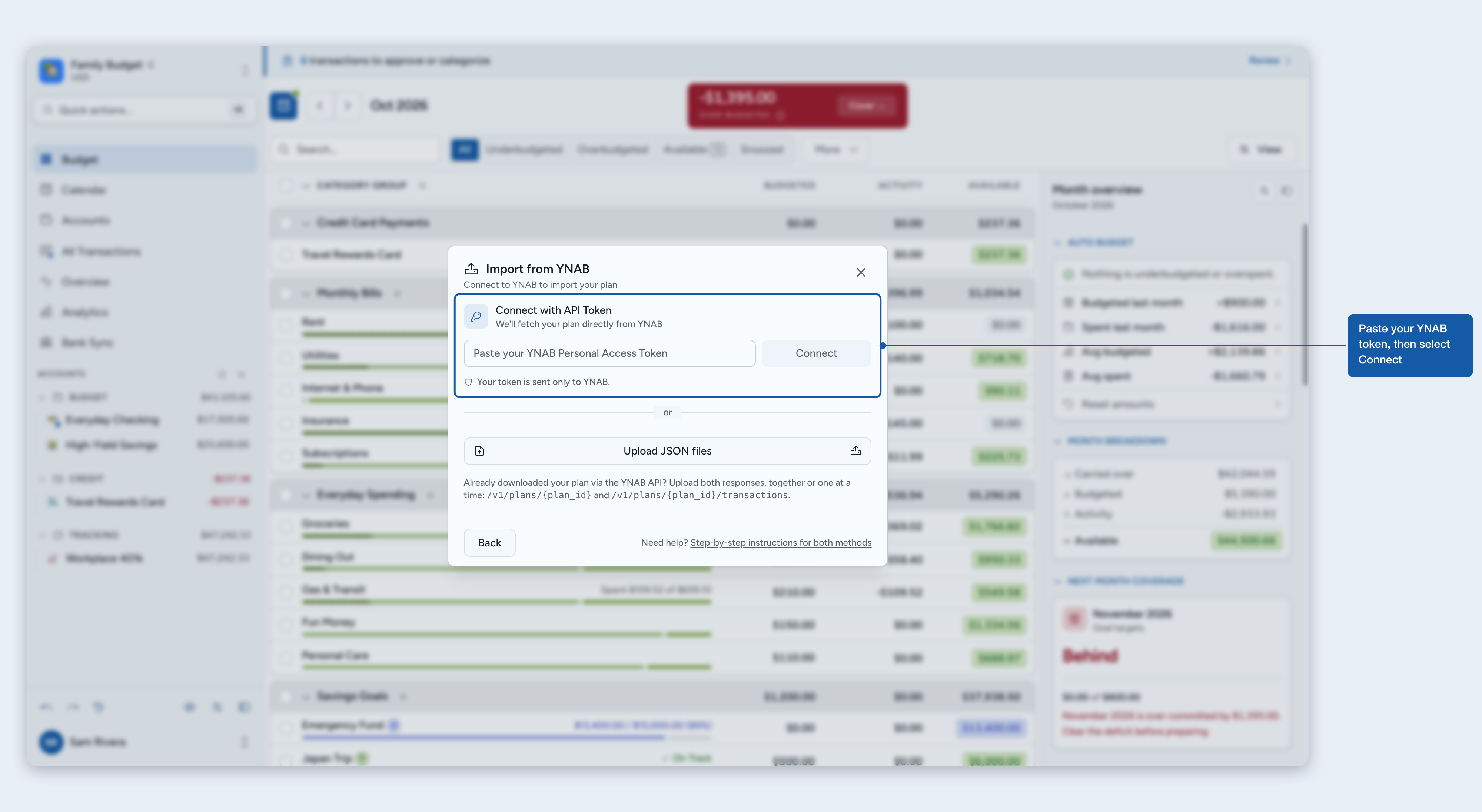
Open the import dialog: open the budget menu from your budget name in the sidebar, choose Switch budget, then Import budget (or choose Import budget on the Manage budgets page). Pick YNAB as the source.
Paste your token and click Connect.
Pick your plan from the list and click Continue. If you have only one plan, it is already picked.
Review and import: step through Budget settings and Review accounts, then click Import Budget on the last step. Account types, loan details, and categories are detected automatically. Credit cards and lines of credit become Credit Card accounts.
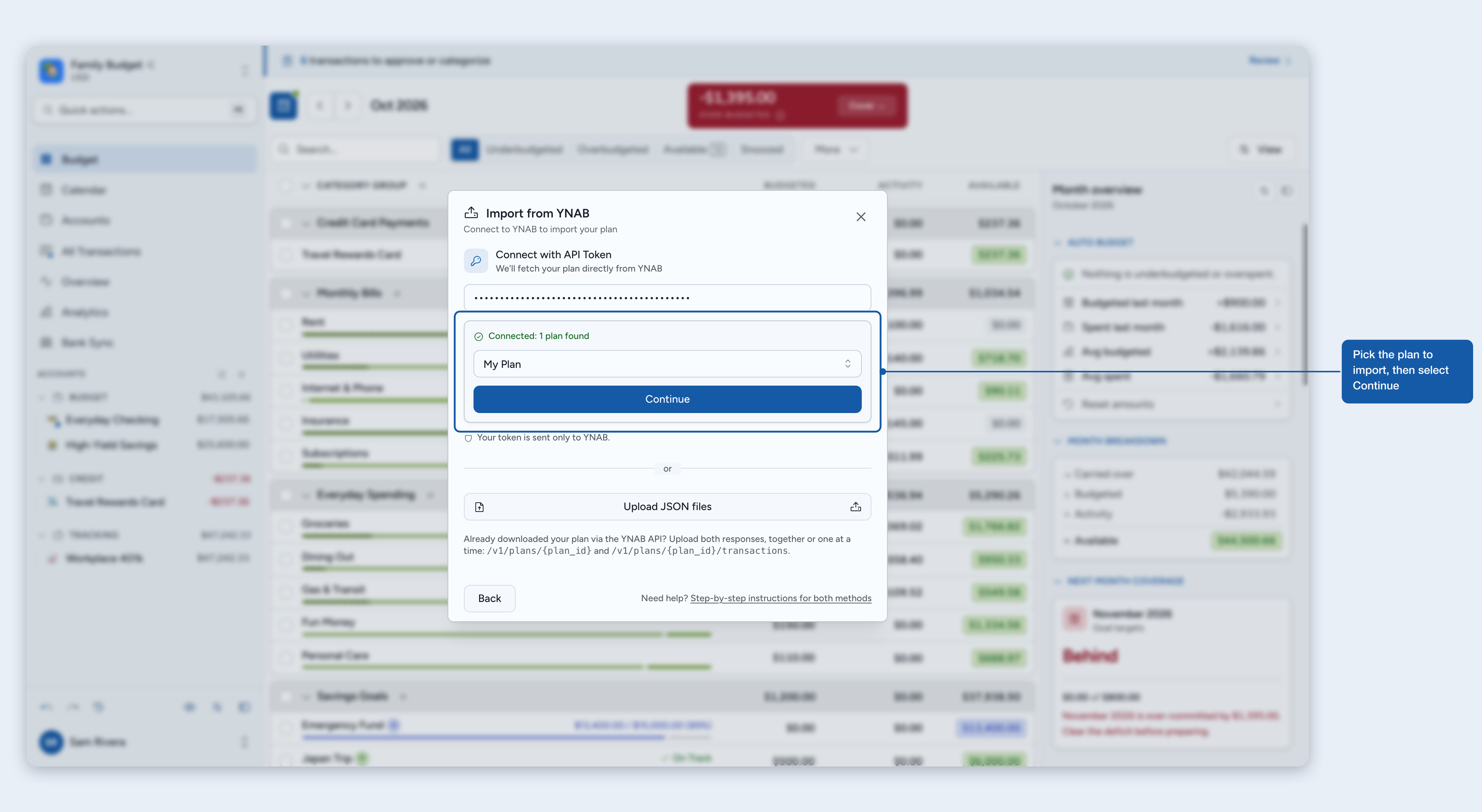
ℹ️ Important: Account types (checking, credit card, mortgage, and so on), loan interest rates, minimum payments, and escrow amounts are all detected automatically from your YNAB data.
Method 2: Upload two JSON files
If you'd rather not paste your token into Zerosum, download your plan yourself and upload the files. You need two files from the YNAB API: the plan export and the transactions list. Both methods import the same data.
Why two files? YNAB's plan export doesn't keep the lines of a split transaction in order. The transactions list does, so Zerosum uses it to keep your split lines in the order you see them in YNAB. That order can change your credit card balances, so the import needs both files.
Download your plan
Create a token: follow the steps above.
Find your plan ID: open your plan in YNAB and look at the web address. The plan ID is the long code right after app.ynab.com/, as in app.ynab.com/
PLAN_ID/budget.Open a terminal: Terminal on Mac, or Command Prompt on Windows. Both include curl.
Run these two commands, replacing
YOUR_TOKENwith your token andPLAN_IDwith your plan ID:
curl -H "Authorization: Bearer YOUR_TOKEN" https://api.ynab.com/v1/plans/PLAN_ID -o plan.jsoncurl -H "Authorization: Bearer YOUR_TOKEN" "https://api.ynab.com/v1/plans/PLAN_ID/transactions?since_date=2000-01-01" -o transactions.jsonThis saves plan.json and transactions.json in the folder your terminal is open in. The since_date part of the second command asks YNAB for your whole history. Without it, YNAB only sends the last year of transactions, and Zerosum refuses the list as incomplete. If your plan has transactions from before 2000, use an earlier date.
⚠️ Warning: Files saved from YNAB's older
/v1/budgetsaddresses no longer work. Zerosum refuses them with "Not a valid YNAB plan export or transactions list". Download both files again with the commands above.
Upload in Zerosum
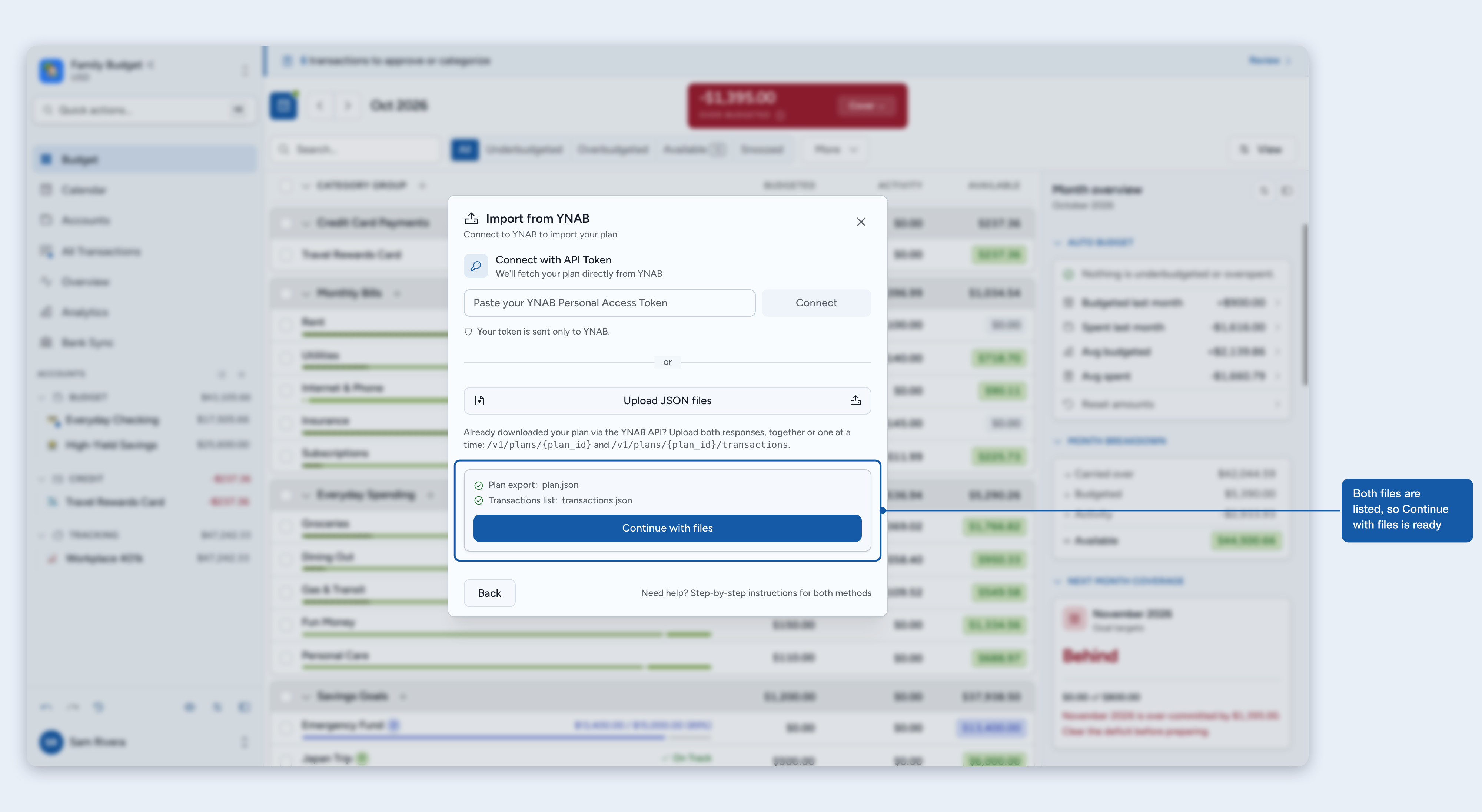
In the import dialog, click Upload JSON files and pick both files. You can pick them together or one at a time, in any order. Zerosum lists Plan export and Transactions list with the name of each file, or missing until you add it.
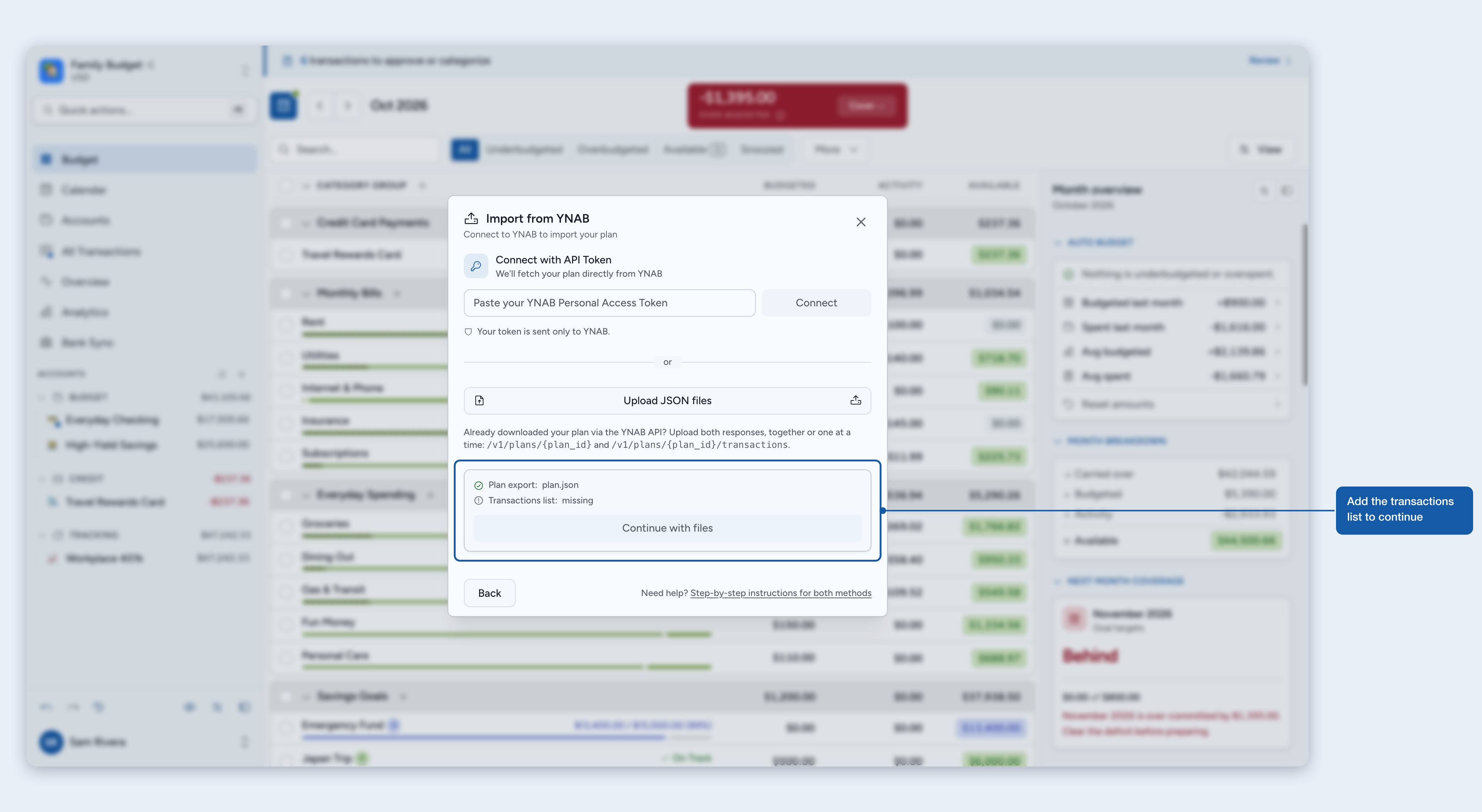
Once both files are listed, click Continue with files, then review and import as usual.
If Zerosum says the transactions list is incomplete or belongs to another plan, the list is missing some of your split transactions. The usual cause is a transactions list downloaded without since_date, which only covers the last year. Download both files again for the same plan with the commands above and upload them together. If you pick two files of the same kind, Zerosum asks for one plan export and one transactions list.
⚠️ Warning: After importing with either method, go back to YNAB's Developer Settings and click Revoke next to the token. You won't need it again.
After import
Account types
Budget: checking, savings, and cash.
Credit Card: credit cards and lines of credit. Each gets its own Payment category, and Ready to Budget after import matches YNAB's Ready to Assign.
Tracking: investments, assets, and other liabilities.
Loan: mortgages, student loans, auto loans, and personal loans, plus any card or line-of-credit debt you move here after import.
Loan accounts
Interest is calculated from the rate in your YNAB data. If your rate changed over the life of the loan, Zerosum uses the most recent one. You can add an adjustment on the loan detail page to correct the balance; see Working with loans for the full workflow.
Lines of credit
In YNAB, lines of credit work like credit cards (they're on-budget accounts), so in Zerosum they become Credit Card accounts too. If your line of credit is really debt you're paying down rather than revolving credit, you can move the balance into a Loan account after import.
What gets imported
Account types and details: types, interest rates, minimum payments, and escrow, detected automatically.
Accounts: Budget, Credit Card (for cards and lines of credit, with auto-managed Payment categories), Tracking, and Loan accounts, all with starting balances and full transaction history.
Category groups and categories: preserving your YNAB display order.
Transactions: all regular transactions with payees, dates, amounts, and categories. Native YNAB splits, including transfer split legs, stay grouped with their lines in the same order as in YNAB, so credit card payment math matches YNAB. Rows with no category stay uncategorized and show up in the "to categorize" banner.
Transfers: paired automatically between accounts using exact YNAB IDs.
Loan payment history: payment transfers plus monthly interest, escrow, and charge activity.
Monthly budgeted amounts: the amounts you budgeted each month in YNAB.
Goals: YNAB targets become Zerosum goals with the same amounts, dates, and repeat settings, including monthly and weekly spending targets, savings targets with or without a date, and loan payment targets.
Scheduled transactions: upcoming one-time schedules arrive as scheduled transactions, and repeating schedules become recurring transactions with the next occurrence already in place.
Fresh start vs import
Fresh start: a clean slate with no historical baggage, categories that match your current life, and simpler, faster setup.
Import from YNAB: preserves transaction history, keeps your budgeted amounts, and maintains loan tracking.
💡 Tip: Not sure? Start fresh first; you can always import later if you miss your history.
Where to next
Was this helpful?
Still need help? Share an idea