Overview page
The Overview shows how your month stands at a glance: one line that says what needs you, and widgets you can arrange.
Written By Pedro
Last updated 4 days ago
The Overview is your budget at a glance: how the month stands, what is coming up, and what needs you. Open it from Overview in the sidebar. It always shows the current month.
The line under your name
The page greets you by first name. The line under it says how the month stands, and takes you to the categories it is talking about.
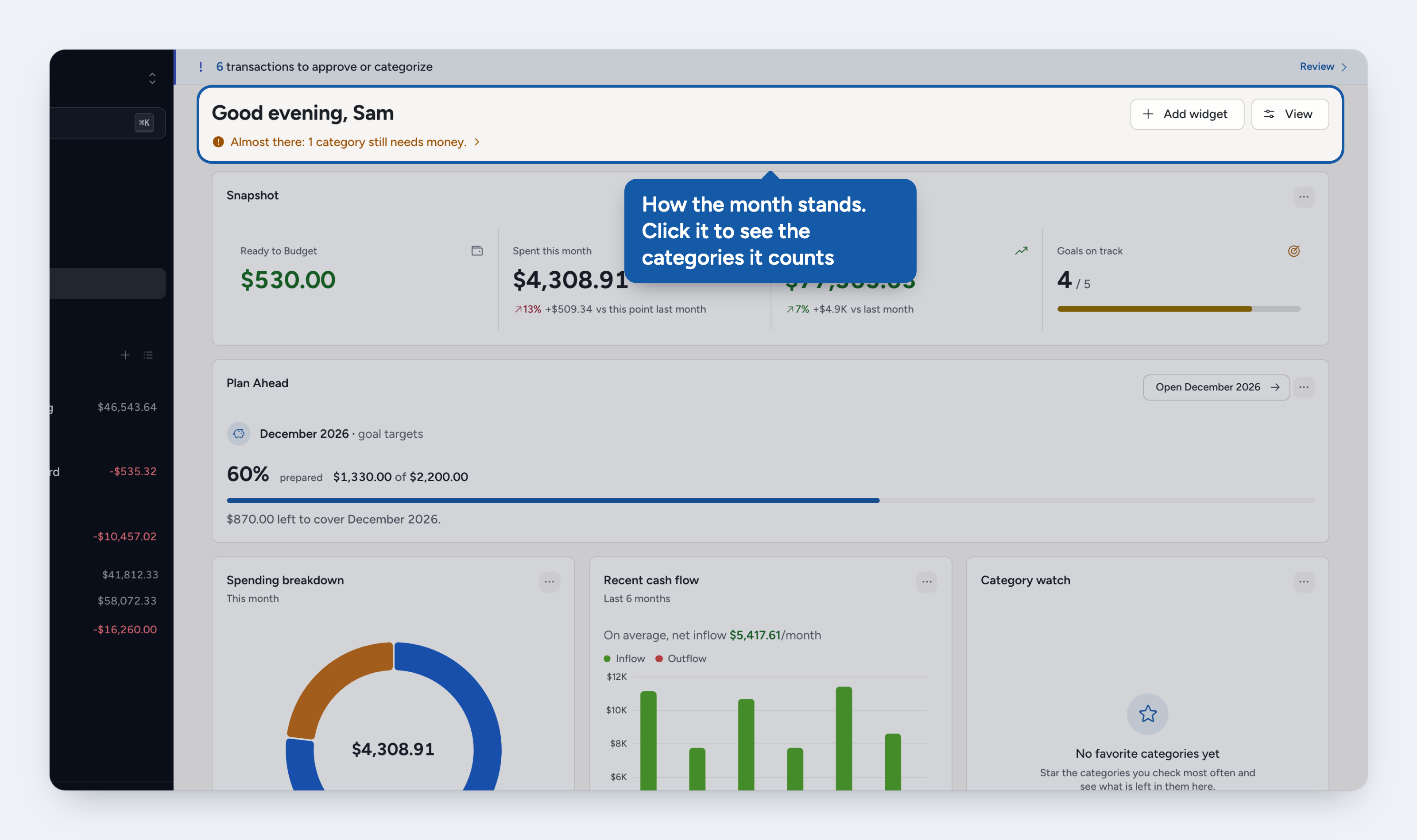
When something is overspent and other categories also need money, a second link beside the line opens those.
Transactions waiting for your review are not counted here. The banner at the top of every page counts them.
The widgets
The rest of the page is a grid of widgets. A new Overview starts with these:
You can also add an Accounts widget and many of the charts from Analytics.
Snapshot
Spent this month compares your spending so far with the same part of last month: on the 10th, with the 1st to the 10th. That stops the first days of a month from always looking like a big drop. Money you moved to savings is not spending, and shows on its own Moved to savings line.
To compare with the whole of last month, open the widget's menu, choose Widget settings, and set Compare spending with to All of last month. The same settings choose which of the four tiles to show.
Category watch
Lists your favorite categories exactly as the budget shows them, in budget order. Click one to open it in the budget. To change the list, star or unstar categories in the budget.
Upcoming
Lists every scheduled transaction, plus the next repeats of your recurring ones as far ahead as your forecast setting reaches (see Scheduled & recurring transactions).
Out and In total what the list moves out of and into your budget. Transfers between your own accounts and cards are left out: that money stays in your budget.
Forecast counts the predicted repeats in the list. They have a dashed edge.
Not covered marks a bill due this month whose category can't pay for what is still scheduled in it, and says how much it is short.
To choose how far ahead it forecasts, open the widget's menu, choose Widget settings, and pick a window under Forecast recurring transactions. It is the same setting as the register's forecast, and it shows once you have a recurring transaction.
Bills in later months are never marked: you have not budgeted those months yet.
Accounts
Lists your cash accounts and credit cards with their balances, grouped like the Accounts page. Under each card, one line says where its payment stands:
A card with nothing owed shows no line. See Credit Card Accounts for how payment categories work.
Make it yours
Use Add widget and View at the top of the page. On a phone they are a plus icon and a sliders icon.
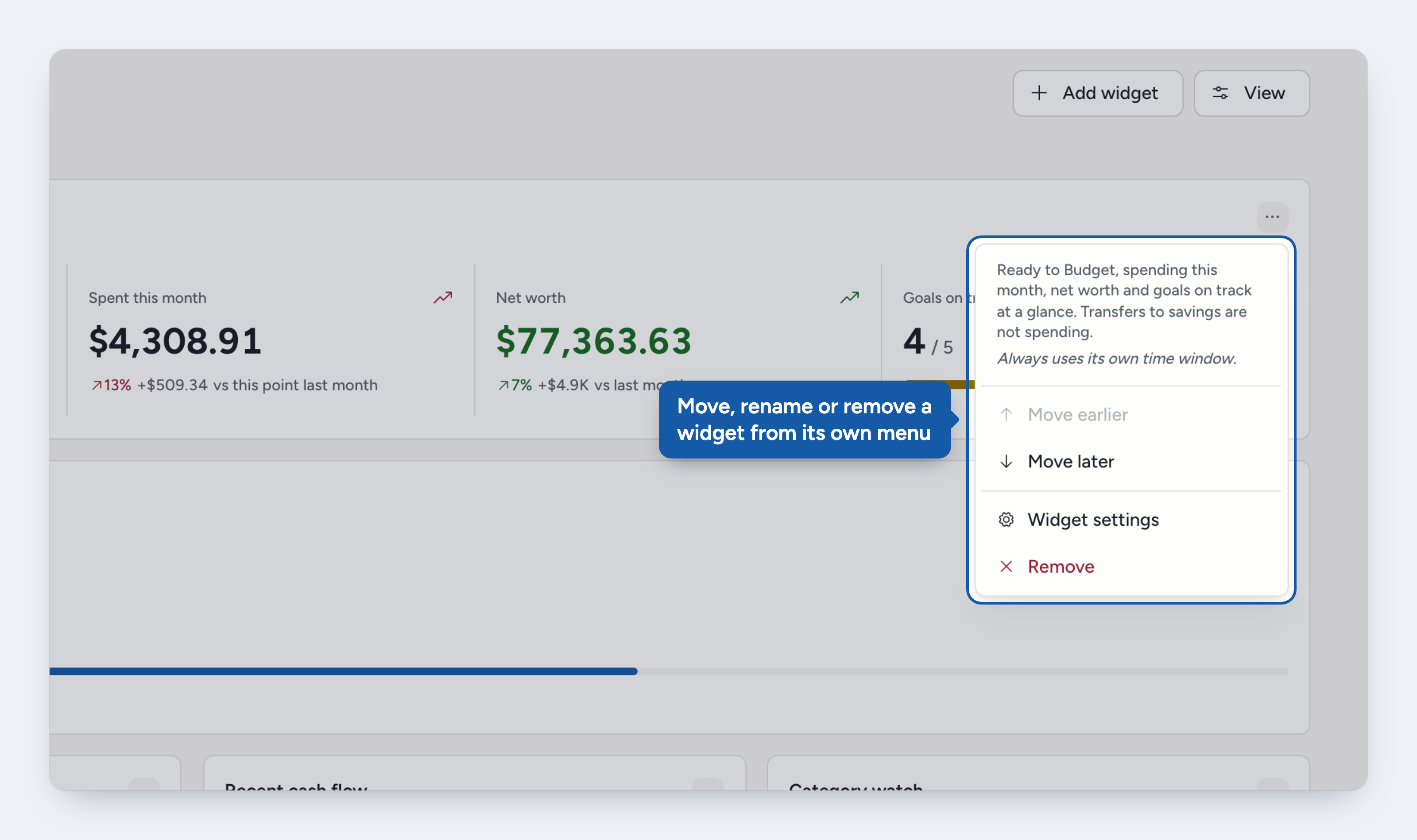
Add a widget: choose Add widget. A widget that has to be told what to track opens its settings right away. The page holds up to 30.
Move, rename or remove one: open the widget's own menu for Move earlier, Move later, Widget settings and Remove.
Reorder them all at once: View > Arrange widgets.
Start over: View > Reset widgets to default brings back the starting page and removes what you added or changed. It can't be undone.
Your layout is saved for each budget and follows your account to every device.
Good to know
Open the app on the Overview: choose it in Settings > Navigation > Home page. On a phone, add it to the tab bar under Settings > Navigation > Mobile tab bar, or find it under More. See Settings.
Charts here have no date range. Monthly figures use the current month, flow charts the last six months, and most other charts the last twelve.
Was this helpful?