📅 v1.10.3: Set Income Aside, Keep Its Category, Meet Iris
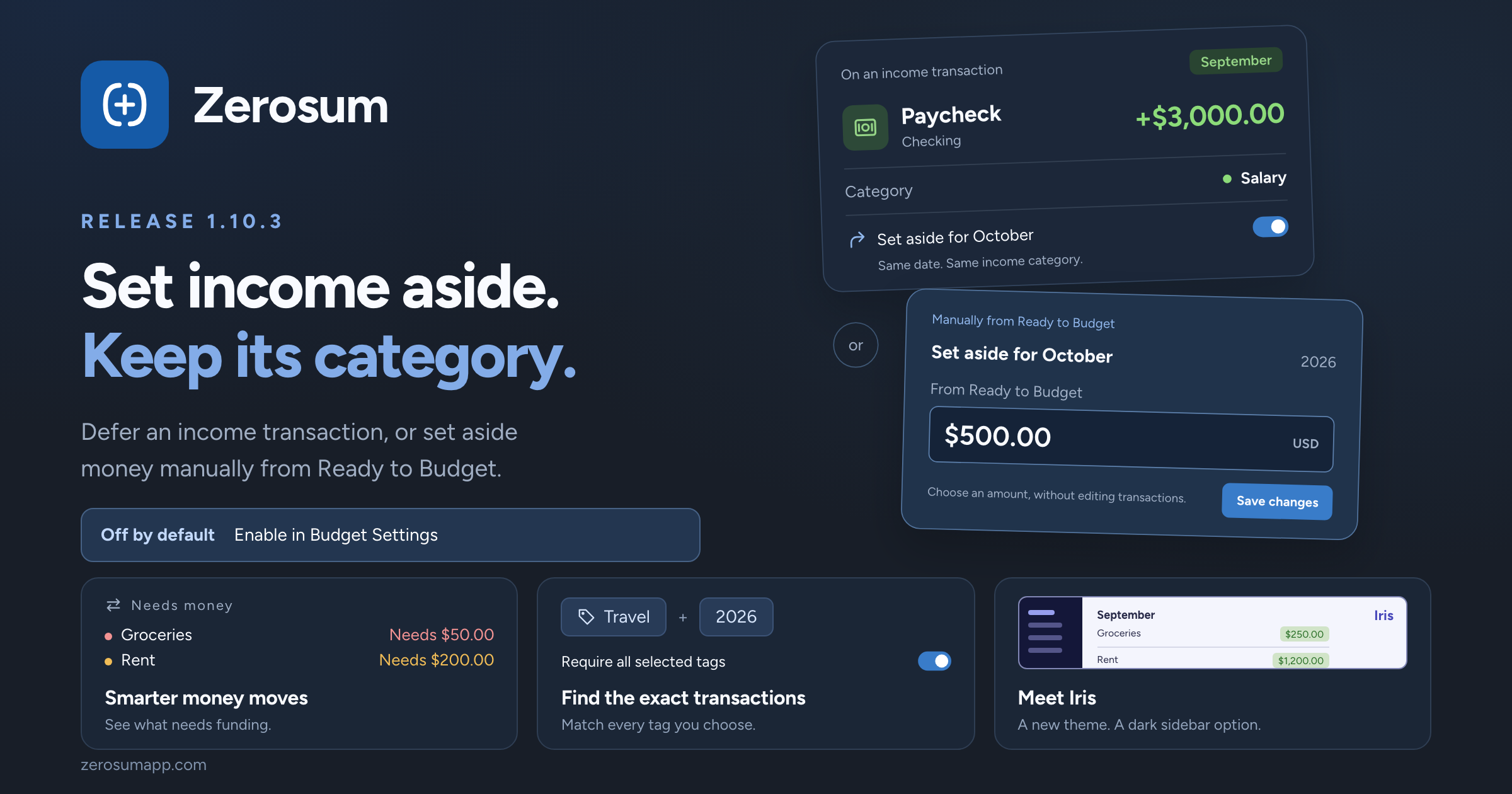
Set aside for next month now works with your income categories. Defer a paycheck while keeping it in Salary, or keep setting money aside manually from Ready to Budget. This is optional and off by default: enable it in Budget Settings when you want to use it. Alongside it: smarter money moves, matching all selected tags, more report controls, and the new Iris theme.
📅 Set income aside, keep its category
To get started: open your budget menu → Budget Settings → turn on Set aside for next month → Save Changes. Previously called For Next Month, this setting is off by default.
- New: defer an income transaction without a special category. Previously, setting an income transaction aside meant choosing the special For Next Month category. That has been replaced by a choice on the transaction itself. Keep Salary, Freelance, or any other income category, and turn on Set aside for {next month} when adding or editing an inflow.
- Keep next month's income out of this month's budget. A $1,000 September paycheck set aside for October contributes $0 to September's Ready to Budget and $1,000 to October's. Its date and income category stay the same. Unbudgeted money already carries forward; setting it aside specifically removes it from the current month's Ready to Budget. You can still open October and budget it straight away.
- Still available: set aside manually from Ready to Budget. Prefer to decide on an amount rather than individual transactions? Open the month's Ready to Budget card and choose how much to set aside, just as before. The editor shows income already set aside, the amount you add from Ready to Budget, and the total for next month.
- New: optional defaults for income categories. Once the budget setting is enabled, turn on Set aside by default in Manage Income Categories for sources you always want to defer. New income follows that default, including bank imports. Changing a default also updates future-dated and recurring income; today's and earlier income keep their existing choices.
- Quick changes ask first. If picking a category would change whether income is set aside, Zerosum asks you to confirm, including when a recurring series is affected.
💸 Smarter money moves
- New: see what needs funding. A Needs money section brings categories needing attention to the top of the destination picker, with overspending first and the amount each category needs beside its name.
- Improved: helpful starting amounts. Pick a destination and the suggested amount follows what it needs and what the source has available. Once you type an amount, your choice stays put.
- Clearer before you move. Partial funding names the category and how much of its need you're covering. Moving more than the source holds shows a warning, and credit card payment categories only suggest moving out money above the card's balance.
🏷️ Find transactions with all your tags
- New: Require all selected tags. Find transactions tagged both Travel and 2026, instead of either one. Available in the transaction filters on desktop and mobile, and remembered in saved transaction views.
📊 Reports, your way
- New: amounts or percentages on spending widgets. Choose how values appear in Spending by Category, Payee, Tag, and the Overview spending breakdown.
- Fixed: each custom dashboard keeps its own date range. Switching dashboards no longer carries one dashboard's dates into another.
- Clearer income reports. Income-categorized transfers from tracking accounts now appear under their income category, including in Income Breakdown. Income Flow widgets also show amounts when you hover over their bars.
- Fixed: Runway's spending average. Older tracking-account entries no longer stretch the spending window and make your average look artificially low.
🎨 Meet Iris
- New: Iris theme. A vivid blue-violet look with a deep indigo dark mode.
- New: a dark sidebar in light mode. Turn on Dark sidebar in Appearance settings. It follows your dark mode theme, including a separate one if you've chosen it.
- Easier to read at a glance. Stronger budget and goal colors in light mode, a green Ready to Budget card when you have money to assign, and clearer links in high contrast.
As always, thank you for the feedback that shaped this one. 💙